Setup & Technical Fundamentals
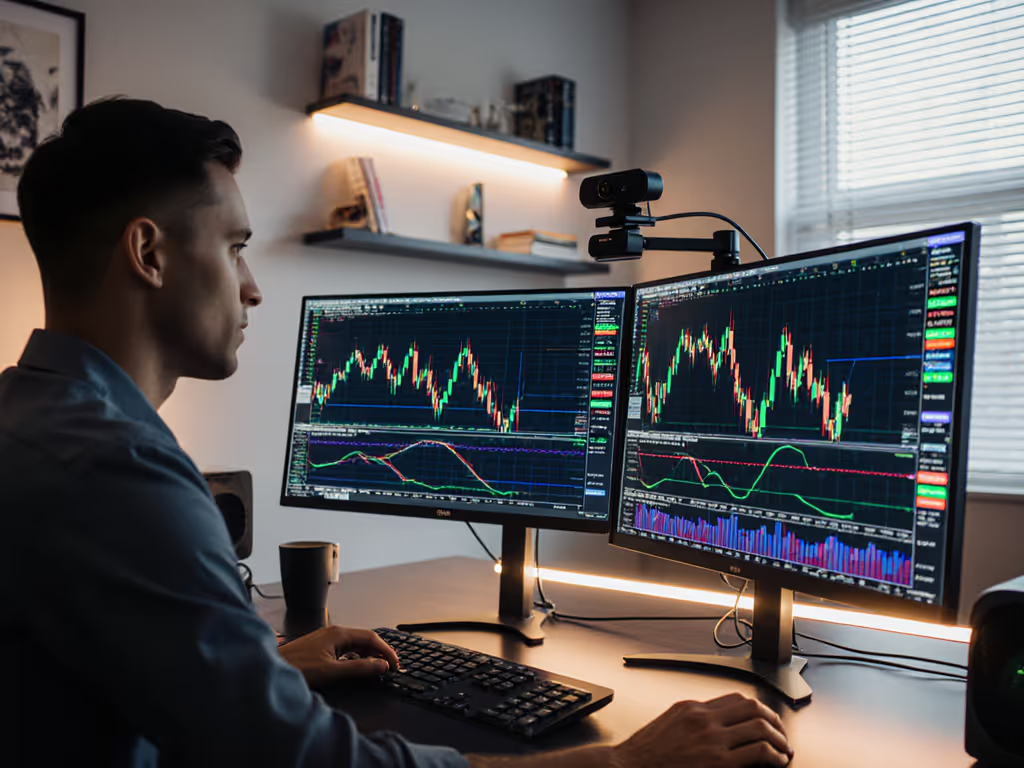
Trading Stream Webcam Optimization: Clear Charts, Clean Video
25th May•10 min read

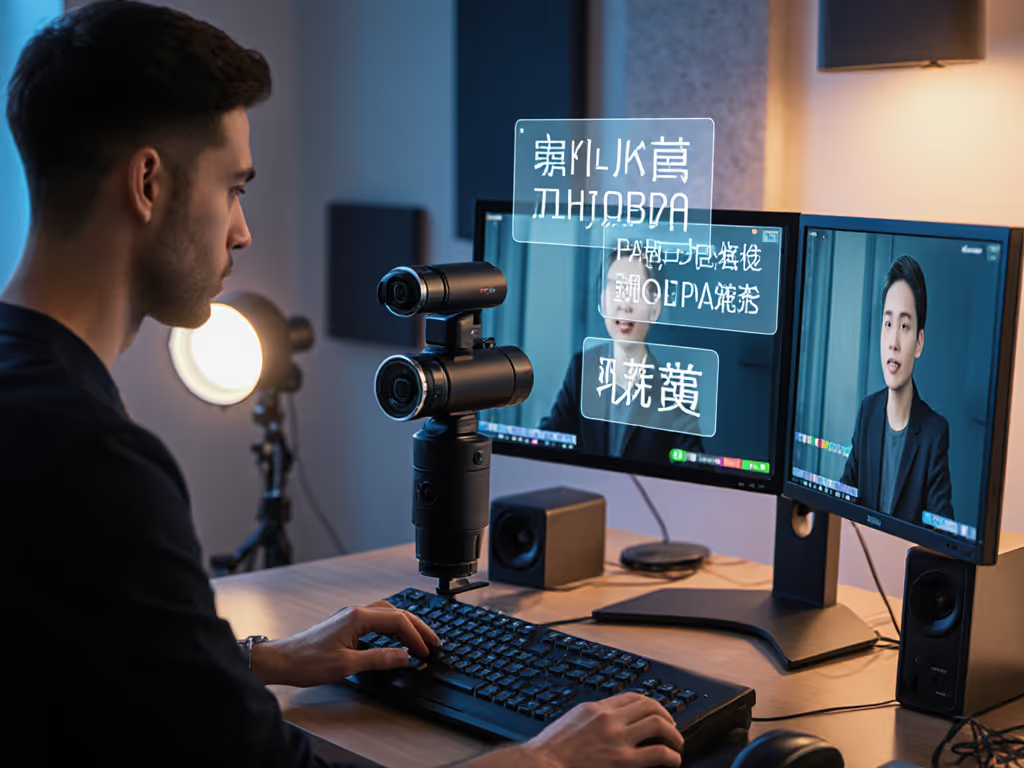
Building an all-webcam streaming setup that delivers professional results hinges on one hard truth: specs don't stream. I learned that the hard way. On a launch stream, my autofocus started pulsing right as I introduced a sponsor segment, tracking artifacts mid-pitch, skin tones shifting frame to frame. I toggled manual focus, finished clean, and spent the next three months rebuilding my testing protocol. Now when I evaluate the best webcam for live streaming, I don't simulate ideal conditions. I simulate chaos: timers running, chat spiking, rapid scene switches, mixed RGB lighting, fast hand motion. If it fails live, it fails the brief. Full stop.
This article dissects the multi-camera live streaming landscape, not from a spec sheet, but from a pressure-test perspective. You'll see why the highest-resolution webcam isn't always the right call, how autofocus stability trumps marketing claims about "AI," and exactly which cameras hold up when your audience is watching.
Why commit to webcam producer-switcher workflows instead of jumping straight to mirrorless or capture cards? Practical reasons: plug-and-play USB reliability, no capture card latency, driver simplicity on Mac and PC, and no thermal throttling on 8-hour streams. A well-matched streaming camera setup scales from solo sessions to multi-angle productions without reinventing your cabling.
The trade-off is real. Webcams max out at 4K/30fps (one camera) or 1080p/60fps, and platform bitrate caps mean Zoom, Teams, and TikTok Live will downscale your signal anyway. What you do gain: predictable latency, color consistency across angles when you match sensors and white balance carefully, and zero firmware horror stories.
The players in the current 2026 market split into four tiers: budget professional streaming ($80-$150), mid-tier prosumer ($150-$300), premium single-camera ($300-$400), and hybrid setups that layer a webcam with one capture-card mirrorless for B-roll or detail shots.
Your hands move. Your beat doesn't wait. Motion blur and frame-rate inconsistency are instant credibility killers.
Candidate: Elgato Facecam Pro (4K/60fps).
The Facecam Pro is the only webcam currently shipping at true 4K/60fps, a fact confirmed by recent testing. At 1080p/60, it's crisp and motion-stable, with an f/1.9 aperture and 1/1.3" sensor that gather enough light in modest setups to avoid noise on fast movements. The autofocus lens is snappy, and the software includes scene-specific presets that actually reduce color pulsing under LED boards.
But here's the skeptical take: 4K/60 looks premium in OBS, but Zoom caps your outgoing stream at 1080p, and YouTube or Twitch will re-encode it anyway. The real value is the 60fps smoothness at 1080p and the low-light capability that keeps your skin tones from crushing when you're lit from the side during a high-energy segment.
Trade-off: Price ($199-$230) and USB power draw mean you'll need a powered hub on some laptops. For a two-angle setup (wide + close detail), budget for two units.
Alternative: OBSBOT Meet SE ($100-$120). Ships with 1080p/100fps capability, AI autoframing that locks to faces and upper bodies, and gesture controls that reduce menu clutter during live sessions. The catch: at 100fps, your bitrate and platform will throttle it back to 60fps anyway, so you're paying for future-proofing. Still, the autoframing is genuinely useful if you move around a lot, and the price makes a second angle affordable.
You need color accuracy, stable skin tones under hot studio lights, and autofocus that won't hunt while you're tilting a palette or zoom in on brushwork.
Candidate: Logitech MX Brio (4K/30fps or 1080p/60fps).
The MX Brio pushes image quality hard. The autofocus is faster and more stable than most webcams, and the low-light performance is solid, so your face stays crisp instead of mushy, even in dimly lit offices or bedrooms. The 90-degree field of view is tight enough for tabletop product shots without the edge softness you get on ultrawide lenses.
In test runs under hot RGB panels, the MX Brio's white balance drifts less than entry-level competitors, and the color saturation holds steady across 30-minute sessions. It's not perfect, no webcam truly nails "set and forget" under mixed red and daylight, but the trade-off is acceptable for professionals who understand they'll tweak color temperature in their lighting rig, not in post.
The real win: 4K/30fps output that, when scaled to 1080p for streaming, preserves fine detail. For beauty content, that means individual brush strokes or lid glitter read clearly even on mobile viewers.
Price: $100-$150. Cable quality is pro-grade (sturdy connectors, no fraying), and the bundled software for auto-exposure tweaks is lightweight.
You're lecturing, coaching, or running a webinar. Your face is the content. You need reliability, stable exposure, and minimal setup friction.
Candidate: Logitech Brio 500 (1080p/30fps).
The Brio 500 is, by recent rankings, the best webcam for most people and an industry consensus pick for remote work and casual streaming. It's 1080p/30fps, which sounds dated (and it is). But the flexible 90-degree field of view, impressive auto-white balance, and auto-exposure out of the box work reliably across a wide range of lighting conditions.
I'm placing it in the "reliable option" tier, not because it's flashy, but because it simply works. Test it in a conference room with overhead fluorescents, then under warm desk lamps, then by a window: the exposure and color temperature stabilize without the pulsing I see on cheaper competitors. The autofocus isn't fast, but it's steady. It won't hunt if you shift your head left-right during a sentence.
Trade-off: 1080p/30fps feels soft if you're used to 60fps motion. For facecam-only work (lectures, interviews, coaching calls), it's fine. For fitness instructors or musicians, the lower frame rate is a deal-breaker.
Price: $70-$100. Proven ecosystem, drivers are rock-solid on Windows and Mac (including Apple Silicon), and Logitech's firmware cadence is reliable. That matters when you stream five days a week.
You're on camera a lot. You move between angles, you want automatic reframing, and you need color quality that makes you look like a seasoned professional.
Candidate: Insta360 Link (4K/30fps with 3-axis gimbal).
The Link is overkill for most users, true statement. It ships on a motorized 3-axis gimbal, carries a $300+ price tag, and requires USB-C power and a data connection simultaneously. But if you're doing multi-angle solo content (e.g., unboxing, tutorial, fitness warm-up), the AI movement tracking cuts editing time significantly. The webcam physically pans and tilts to follow your motion, so your editor or VOD viewer sees a composed, multi-angle feel without you cutting between cameras manually.
The optics are the standout: 1/2-inch sensor, best auto-exposure and color reproduction in the webcam category. Skin tones hold consistency even when you step between daylight and RGB-lit product areas. Low-light handling is exceptional, and detail stays crisp at ISO levels where competing webcams turn to mush.
Real-world pressure test: Run a 30-minute product demo with the Link in auto-track mode, switching between close-ups (gimbal pans down) and wide shots (gimbal reframes). The tracking is smooth, no jank, and the color stays locked. Then throw in a Zoom call midstream and switch back to fixed framing, and the software handles mode switching without crashes.
Trade-off: The gimbal adds latency (100-150ms round-trip), which can cause lip-sync issues if you're layering audio from a USB mixer. Also, the gimbal footprint is larger; you'll need monitor space. And if your content is purely seated (podcast, interview), the motorized gimbal is wasted money.
Price: $300-$350. Justified only if you're already earning from content or eyeing sponsorships.
You're starting out. You have $100-$150, and you need the best budget professional streaming camera that doesn't compromise on reliability.
Candidate: NexiGo N980P (1080p/30fps).
The N980P is the "it just works" option. 1080p, no frills, solid low-light performance via a large f/2.0 aperture, and a sturdy physical design that won't rattle if your desk vibrates during podcast recording. The autofocus is predictable, not fast, but not hunting.
Why this over the Brio 500? Price-to-performance, and vendor support. The Brio 500 is $70-$100, but the NexiGo undercuts it and includes physical mounting brackets. If you're running a two-camera setup and every $20 counts, the NexiGo frees budget for a second camera or a lighting fix.
Alternatively: YoloCam S3 ($120-$150). Praised for exceptional image quality straight out of the box, strong low-light handling, and a metal build that feels professional without the price tag of the Facecam Pro. The YoloCam S3 trades autofocus speed for consistent image rendering, great if you're stationary (desk, podcast booth) and moving forward in a year.
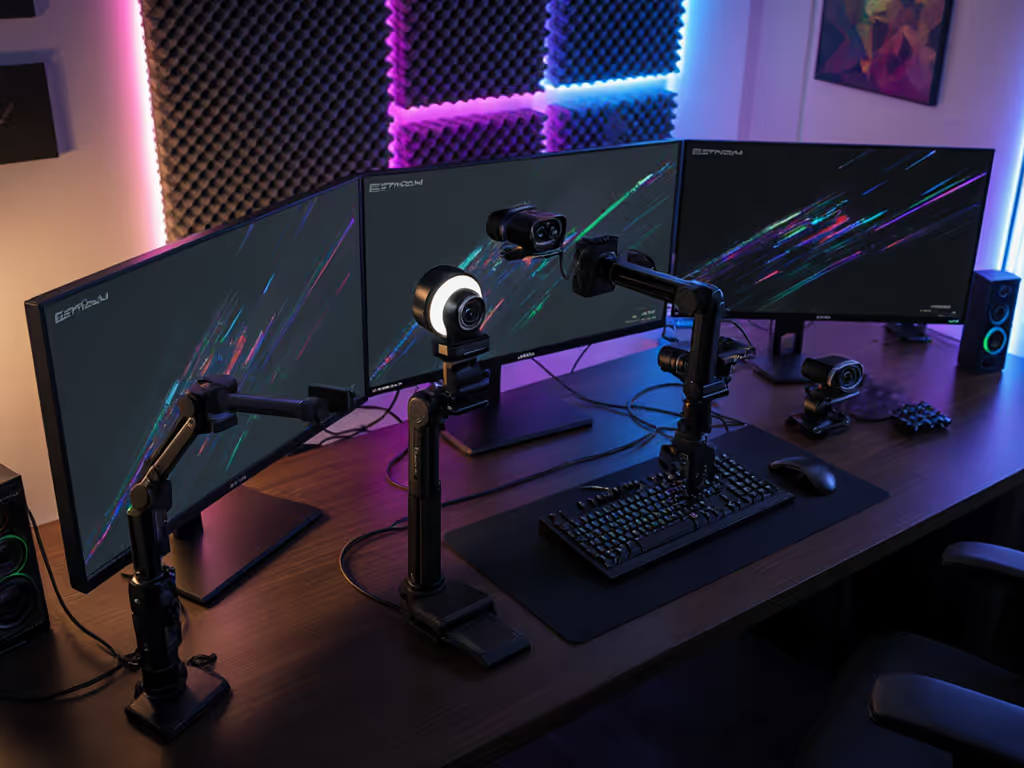
When you layer two or three webcams (say, a wide face shot, a product close-up, and an overhead desk cam), inconsistency kills professionalism. Viewers notice when your skin tone shifts as the director cuts between angles.
Strategy: Match sensor architecture where possible. Logitech MX Brio + Logitech Brio 500 share similar white-balance tuning and will color-match more reliably than, say, MX Brio + OBSBOT Meet SE (different sensor vendors). If budget doesn't allow exact matching, use OBS color correction filters on one camera: a +5 to +10 green boost on the mismatched camera usually bridges the gap without obvious processing artifacts.
FOV (field of view) matters too. If your main camera is 90 degrees (tight, face-focused) and your secondary is 120 degrees (ultrawide, desk overview), the jump between angles feels jarring. Aim for two cameras within 15-20 degrees of each other.
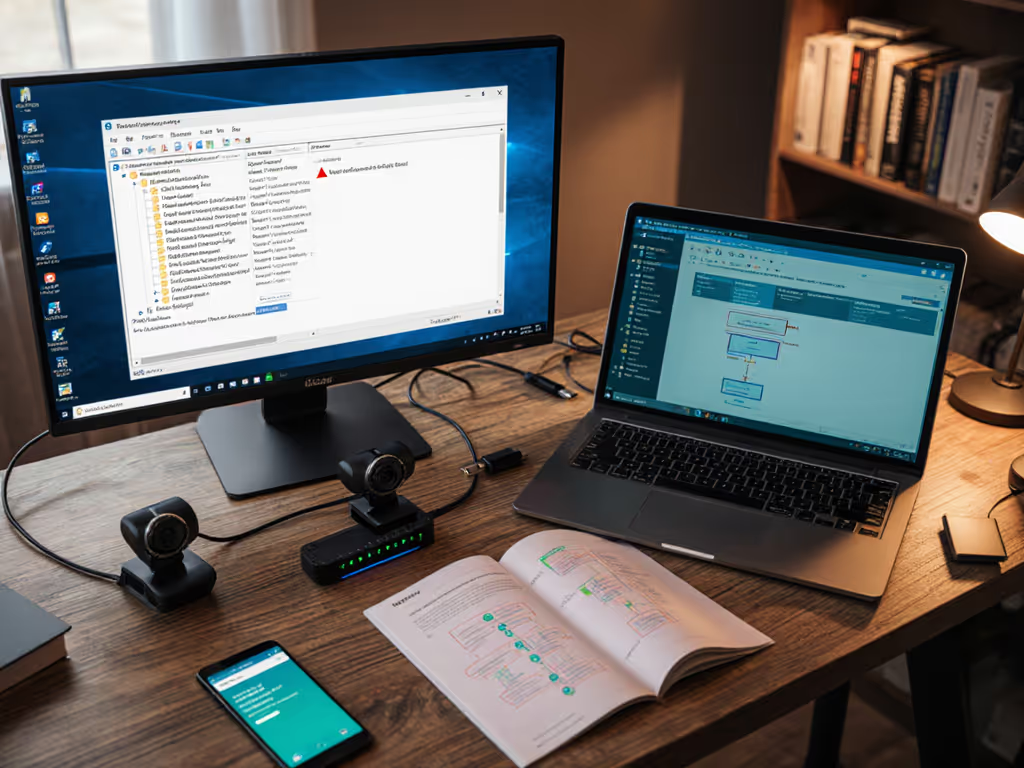
Latency parity: All USB webcams have latency (20-80ms round-trip, depending on hub quality and USB version). If you're live-switching between cameras in OBS, ensure they're on the same hub or controller. A camera on a sketchy third-party hub will lag behind one on the motherboard's built-in USB, creating audio-sync drift that's hard to diagnose in real-time.
Trust the prep. Test your multi-camera setup 48 hours before the actual live stream, not an hour before. For switching layouts, sync, and budgeting, see our dual webcam setup guide.
Specs don't tell you what actually fails live. Here's what I watch for:
Autofocus hunting: Push a product or your face rapidly toward the camera while autofocus is on. Does it lock, or does it pulse (lock, blur, lock, blur)? The MX Brio and Facecam Pro hold steady. The Brio 500 is slower but predictable. The OBSBOT Meet SE, when AI autoframing is on, sometimes hunts when your hands cross the face zone.
Exposure pulsing under RGB: Set up a cheap LED ring and flicker it on and off. Does the camera's exposure compensation overreact (brightens and dims), or does it hold? The Insta360 Link absorbs flicker beautifully. Budget cameras often pulse visibly.
Thermal drift: Stream at 4K or 1080p/60 for 2+ hours without stopping. Does the color shift as the sensor warms? The Facecam Pro and MX Brio stay locked. Cheaper options sometimes show a very subtle warm shift after 90 minutes.
USB power draw: Plug the webcam into a laptop's USB-C port (no external hub). Does it run stable, or do you see frame drops? The Brio 500 is miserly (~200mA). The Facecam Pro asks for more (~400mA) and should ideally be on a powered hub.
For fast motion (fitness, music, gaming): Elgato Facecam Pro. 60fps smoothness, snappy autofocus, low-light bokeh that adds production value. Budget: $200.
For face-focused, reliability-first (coaching, webinars, lectures): Logitech Brio 500. Proven driver stability, impressive auto-exposure, zero fuss. Budget: $80-$100.
For color-critical, product-focused work (beauty, unboxing, reviews): Logitech MX Brio. Best autofocus stability, accurate white balance, 4K downscale for detail preservation. Budget: $120.
For solo content creators who move a lot (tutorials, demos): Insta360 Link if budget allows, for the gimbal and color quality. Otherwise, OBSBOT Meet SE for AI autoframing at a lower price point. Budget: $130-$350.
For budget-conscious entry streamers: YoloCam S3 ($120-$150) or NexiGo N980P ($100) as the reliable second camera in a multi-angle setup.
For multi-angle professional setups: Pair an Elgato Facecam Pro (main, hero angle) with a Brio 500 or OBSBOT Meet SE (secondary, detail/b-roll). Total: $250-$350 for two cameras, color-matched enough for side-by-side streaming without obvious jumps.
A single 4K/30fps camera can sustain a solo content operation indefinitely. Multi-angle streaming demands either multiple cameras or a hybrid setup (one webcam + one DSLR/mirrorless via capture card for detail/b-roll). The bottleneck is rarely the camera; it's usually lighting and audio.
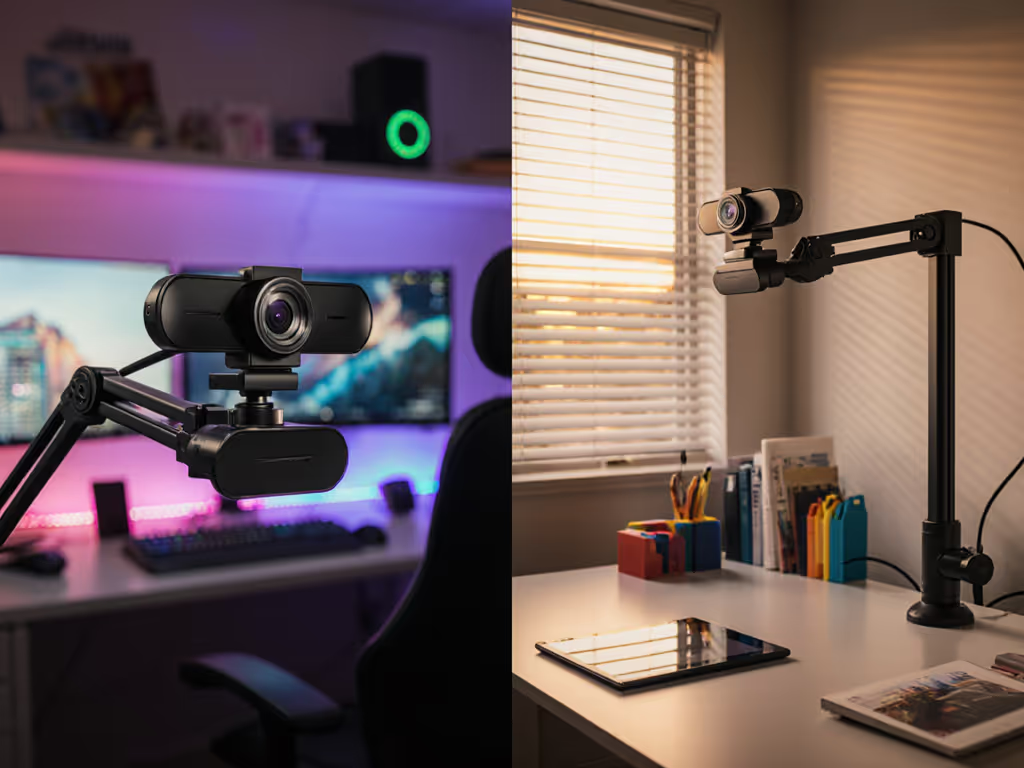
If you're seeing crushed blacks, blown highlights, or noisy shadows, fix your lighting setup first. A $40 LED panel behind your monitor does more for perceived quality than a $200 upgrade in camera. If you're hearing background hum or room echo, a USB cardioid mic ($30-$80) outranks a camera swap.
When autofocus becomes a liability, missing focus mid-product demo or hunting during fast hand motion, that's your signal to upgrade to a camera with faster, more stable tracking (MX Brio or Facecam Pro) or to manual focus with a telecue or notes system.
When exposure pulsing under your lighting rig is visible in VOD or, worse, in real-time chat complaints, upgrade to a camera with better color stability under mixed RGB (Insta360 Link, MX Brio, Facecam Pro) and pair it with tighter RGB tuning in your light kit.
Mirrorless cameras and capture cards have their place, especially if you want real bokeh, manual focus throw, or the psycho-social weight of "real" cinema gear. But a disciplined all-webcam setup, pressure-tested under your actual streaming conditions, scales reliably from $100 to $400 and requires zero capture-card latency troubleshooting.
The creators who sustain multi-year streaming careers aren't the ones with the fanciest gear. They're the ones who understand their workflow, match cameras to actual use cases, and build habits around consistency. Gear should make promises you can keep live, every time. A $120 Logitech MX Brio or YoloCam S3 streaming flawlessly for 30 sessions outperforms a $1000 mirrorless setup that drops frames on your biggest premiere.
Trust the prep. Match your camera to your motion and light. Test multi-angle setups before broadcast. And if something fails live, you've already debugged it in rehearsal. That's the all-webcam advantage.