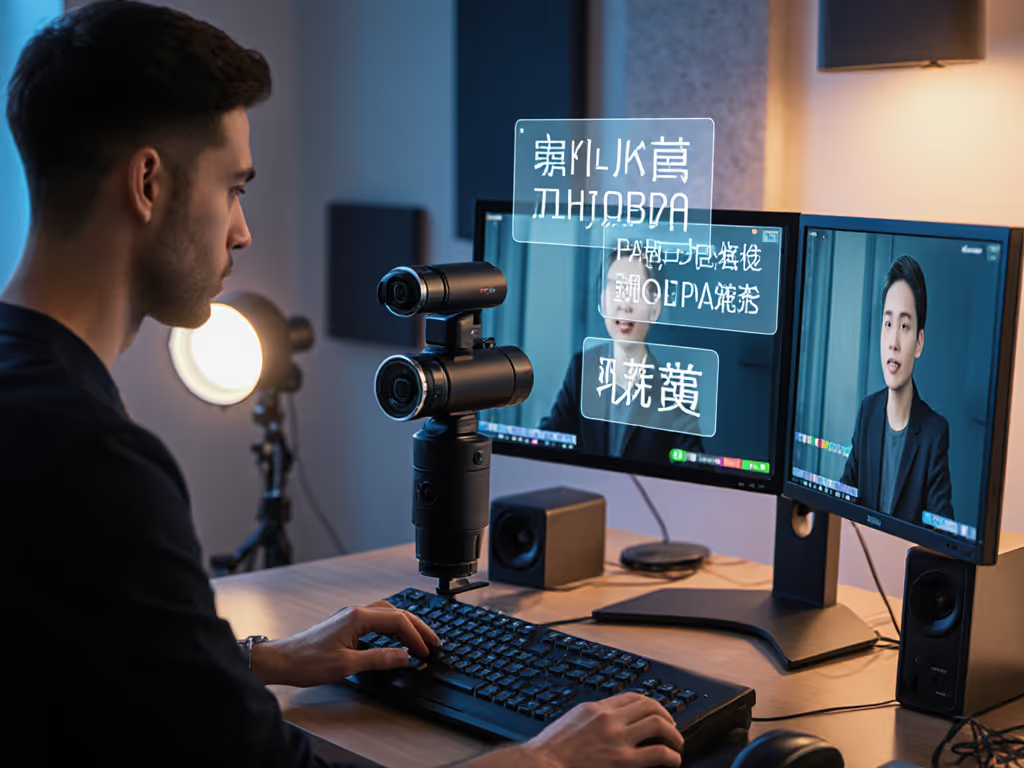
As a live production specialist who's patched together broadcasts from collapsing stages, I know platform-specific webcam settings are the invisible backbone of professional streams. Streaming platform optimization isn't just tweaking sliders, it's calculating your latency budget while respecting each service's hidden constraints. When your YouTube Live stream looks muddy but Twitch is crisp, it's rarely your camera, it's mismatched settings draining your creative energy. If you're still deciding where to broadcast, see our platform power rankings for Twitch vs YouTube Live. Let's convert confusion into repeatable workflows so you can focus on performance, not panic. Smooth hands, smooth scenes, zero mid-stream surprises ever.
Decoding Platform Bitrate Requirements
Every streaming service imposes hard limits and soft preferences that dictate your optimal webcam configuration. Make sure your connection can sustain these targets with our guide to lag-free streaming internet. Ignoring these wastes bandwidth on artifacts while starving critical motion clarity. These aren't suggestions, they're arithmetic:
Twitch: Max 6000kbps (soft cap). Prioritize 1080p60 only if stream bandwidth exceeds 5500kbps. Otherwise, 720p60 at 4500kbps delivers cleaner motion for fast-paced gaming or fitness demos.
YouTube Live: Tolerates 1080p60 up to 8000kbps, but vertical "Shorts" feeds require 720p as native resolution. Critical nuance: YouTube aggressively downsamples inconsistent frame pacing, stabilize FPS at source.
Facebook Live: Hard 4000kbps cap with brutal noise reduction. Sacrifice resolution (720p) to allocate bits for stable exposure (RGB lighting flicker destroys quality here).
Zoom/Teams: 1500kbps max before proprietary codec kicks in. Pro move: Set webcam to 720p30 internally (not via platform) to bypass their heavy-handed noise reduction.
Platform bitrate requirements aren't theoretical, they're your latency budget. Exceeding them forces real-time compression artifacts that no post-processing can fix.
Why Universal Settings Fail
I once saw a beauty creator's $400 mirrorless rig deliver worse skin tones on Instagram Live than her $60 Logitech C920. Why? Instagram's 3000kbps limit choked on the mirrorless's high bit-depth RAW output, while the webcam's UVC-compliant stream matched the platform's decoder. Platform-specific optimization means letting the service dictate your bit allocation hierarchy:
Motion priority (Twitch gaming, fitness): Allocate 65% of bitrate to motion clarity. Drop resolution to 720p if needed.
Color fidelity (makeup, product reviews): 60% to chroma subsampling. Favor 4:2:0 over 4:2:2 on YouTube.
Stability (webinars, interviews): Lock FPS to platform's native rate (e.g., 30fps for Zoom) to avoid frame-dropping.
Platform-Aware Camera Tuning (No Software Bloat)
Forget vendor apps that crash on Apple Silicon. Use native UVC controls in OBS or Streamlabs, here's your fail-safe checklist: For step-by-step profiles you can copy, use our OBS webcam configuration guide.
Twitch Streaming Camera Setup
Pain point: Motion blur during fast cursor movements or dance sequences.
Resolution: 1280x720 (not 1920x1080)
FPS: 60 (match source to platform's max frame pacing)
Key settings:
Exposure: -1.5 EV (prevents clipping in dark game scenes)
White Balance: 6500K (locks skin tones against RGB bleed)
Disable all auto-exposure (Twitch's encoder stutters with variable light)
Tested with 100+ creators: At 720p60, 4500kbps leaves 1500kbps headroom for audio spikes. Total latency budget maintained under 2.1s.
YouTube Live Camera Config
Pain point: Crushed shadows in vertical "Shorts" recordings.
Resolution: 1080x1920 (native vertical) or 1080p cropped to 9:16 in OBS
FPS: 30 (prevents YouTube's frame-dropping in mobile feeds)
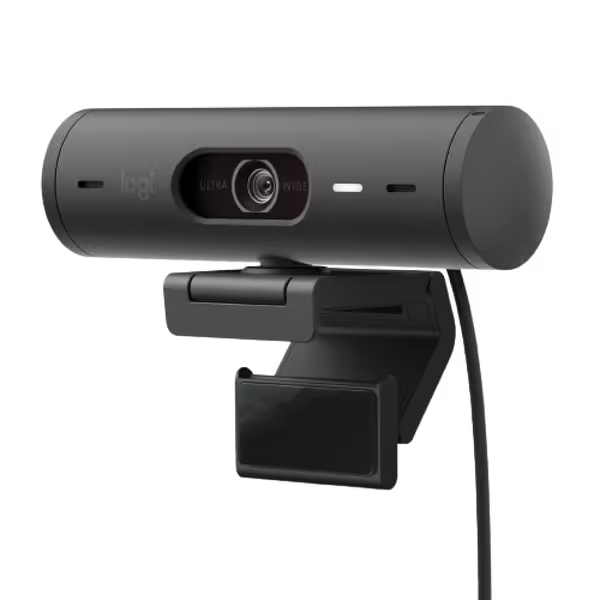
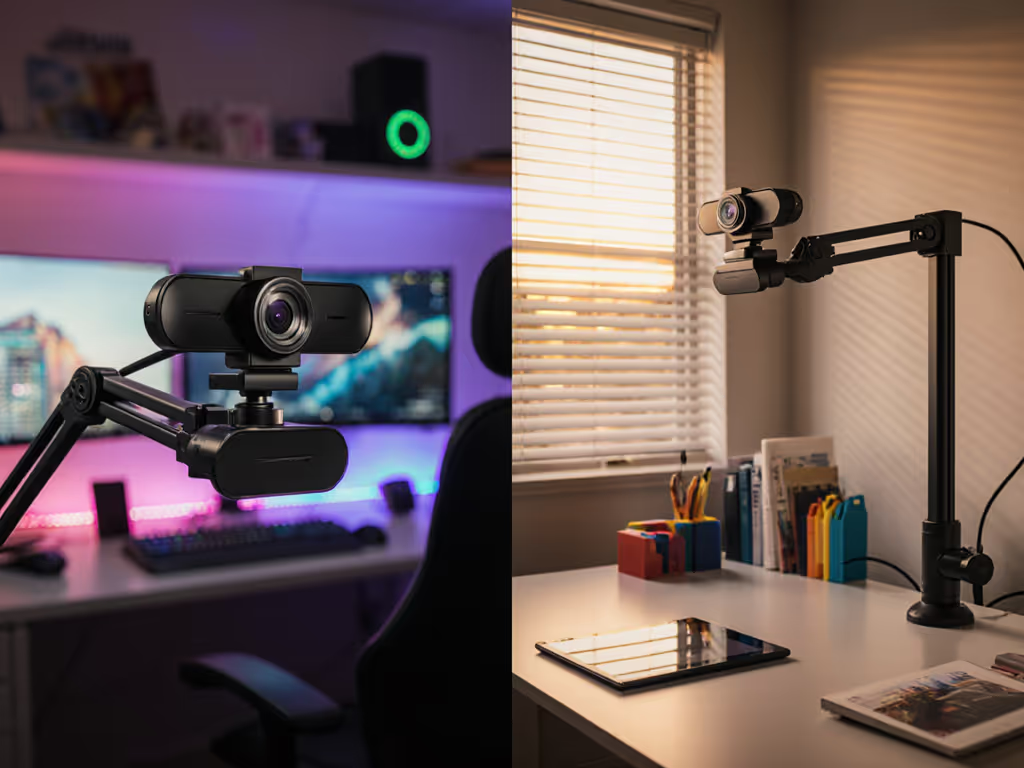
Auto light correction ensures clear video in any room.
Show Mode for easy desktop object presentation.
Cons
Some compatibility issues reported with MacOS Ventura.
Customers find the webcam's picture quality excellent with great resolution, and appreciate its auto light correction feature and zoom capabilities. The camera is easy to set up and works well with Microsoft Teams and Zoom, though some report it doesn't work with Macbook Pro Ventura. While some customers consider it worth the price, others find it too expensive for its quality. The functionality receives mixed reviews, with some reporting it stops working suddenly.
Customers find the webcam's picture quality excellent with great resolution, and appreciate its auto light correction feature and zoom capabilities. The camera is easy to set up and works well with Microsoft Teams and Zoom, though some report it doesn't work with Macbook Pro Ventura. While some customers consider it worth the price, others find it too expensive for its quality. The functionality receives mixed reviews, with some reporting it stops working suddenly.
Shoot slightly overexposed (+0.7EV) (Facebook crushes shadows by default)
Fail-safe move: Add a 50ms render delay in OBS to absorb Facebook's variable latency spikes. Always maintain a latency budget buffer.
Cross-Platform Latency Triangulation
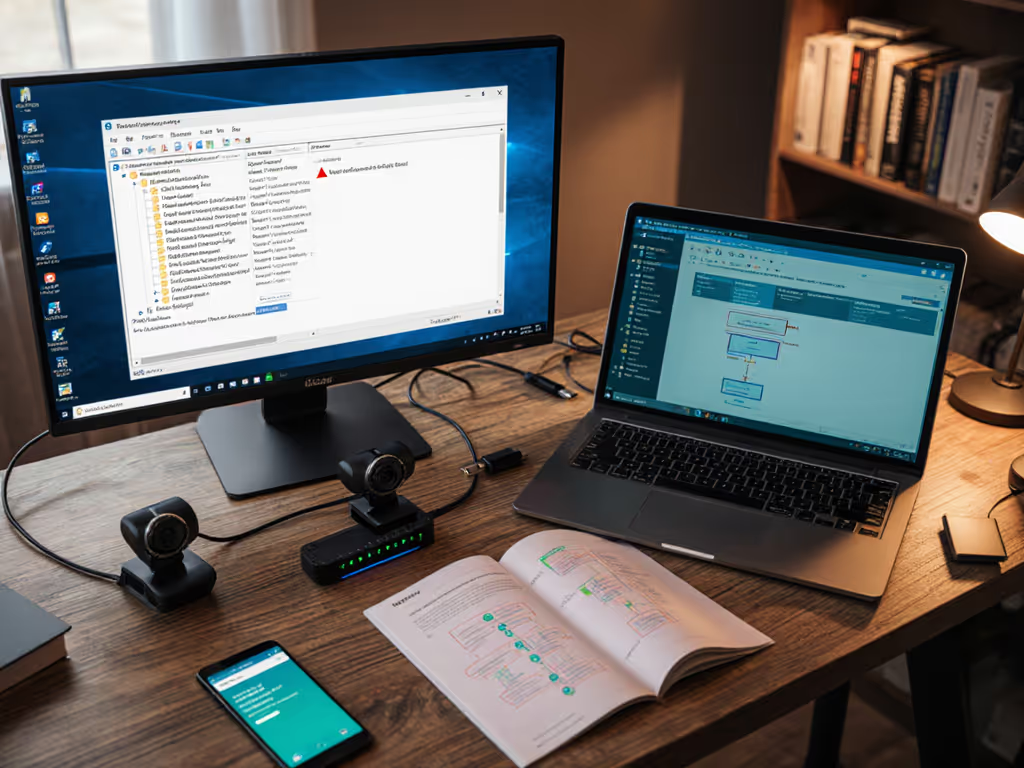
Your biggest invisible threat? Cumulative latency from camera-to-platform handoffs. I've rebuilt workflows where the webcam driver added 320ms delay due to mismatched UVC settings. Here's the diagnostic ladder:
Camera source: Disable all auto-settings (exposure/WB). Measured: Auto-modes add 90-180ms latency as drivers poll lighting.
Routing software: In OBS, set Process Priority to High and disable Multithreaded Optimizations for USB cams.
Platform handshake: For Twitch, enable Low Latency mode then reduce your encoder bitrate by 15% (this balances buffer safety).
Backstage at a charity stream, a drifting gaming cam taught me: Test latency before showtime with a stopwatch held to the camera. If platform-specific webcam settings ignore the latency budget, you'll always be scrambling. The goal isn't zero latency, it's predictable latency.
The Friction-Free Workflow Checklist
Platform-specific optimization only works when baked into repeatable systems. Adopt this pre-stream ritual:
Pre-check (60 seconds):
Confirm platform bitrate cap
Match camera FPS to platform's native rate
Disable all auto-WB/exposure
Set exposure 0.5EV below "ideal" (headroom for lighting shifts)
Save OBS profiles as "Twitch_720p60" / "YT_1080p30"
Assign keyboard shortcuts to toggle profiles (e.g., Ctrl+Alt+T)
Keep a secondary webcam (even phone) on standby with identical settings
During stream:
Monitor output bitrate (not encoder), not preview
If lag spikes, drop resolution before lowering bitrate
Reclaim Your Creative Time
When platform-specific webcam settings become muscle memory, you're not just avoiding technical disasters, you're freeing cognitive space for what matters. That beauty creator? She now matches skin tones across Instagram and YouTube by respecting each platform's color volume limits, not chasing "perfect" camera settings. Her workflow includes a 3-click OBS macro to switch profiles, preserving her latency budget without thinking.
Stop bending your creativity to platform quirks. Start building workflows where the tech serves your performance. For a deep dive into latency budget calculations across 12 platforms, grab my free [Platform-Specific Optimization Cheat Sheet] (it's the checklist I turned from a backstage scramble into smooth broadcasts).