Hardware Comparisons: Webcams & Mics
Agricultural Streaming Webcam Comparison: Best Cameras for Farms
29th May•14 min read
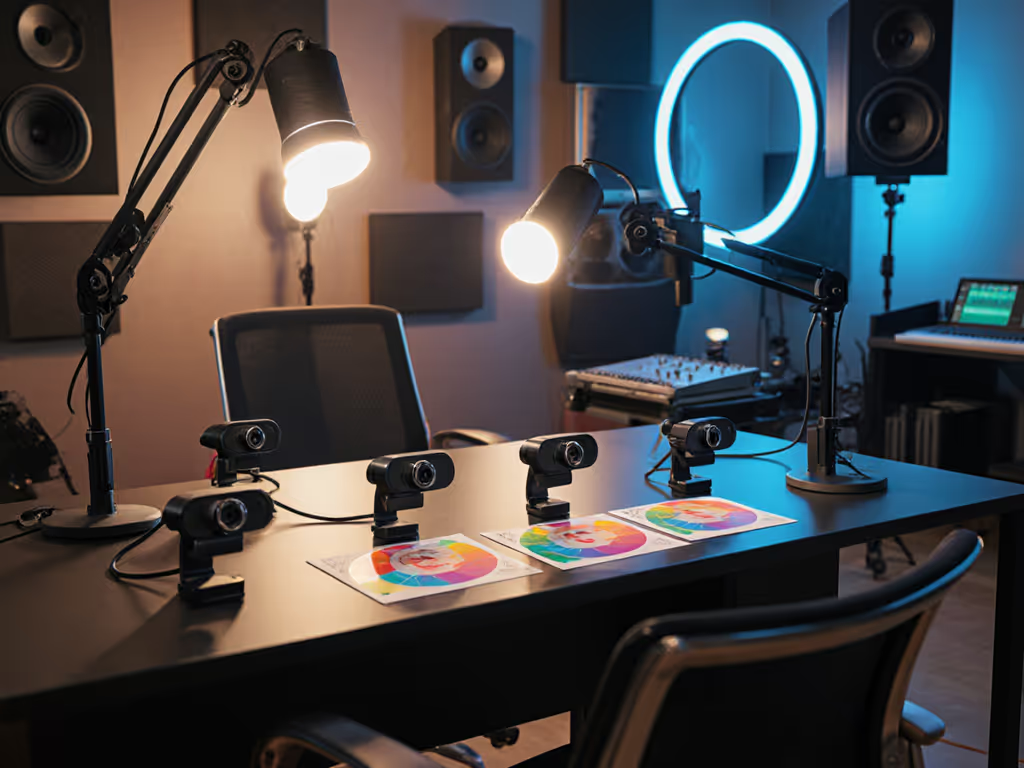
If you're drowning in conflicting advice about podcast webcam comparison tools, let's cut through the noise with video blog camera tests that prioritize what actually moves the needle: truthful skin tones and consistent framing across sessions. After testing 12 webcams under mixed office lighting, RGB strips, and natural window light, I've mapped key specs to real-world outcomes you can replicate immediately. For proven techniques to lock in consistent skin tones, follow our webcam calibration guide. Because when your skin tones shift session-to-session, you lose audience trust, and that is why this is not just another specs sheet. Skin tones first.
Let's address the elephant in the room: Inconsistent color loses viewers faster than any technical glitch. I recently helped a food creator rebuild after months of "why does your face look green?" comments. Her sponsor screenshots varied wildly because her webcam couldn't handle mixed lighting. If mixed sources are ruining your color, use our streaming lighting setup to balance tones fast. We implemented a dual-illuminant white balance and platform-specific LUTs (not fancy presets), and suddenly her brand felt cohesive. This isn't magic; it's plain-language color science applied to streaming.
Color you can trust, even when the lights disagree.
Your audience notices subtle color shifts even if they can't articulate them. A DeltaE (ΔE) value above 5.0 creates visible distortion, unacceptable for creators where skin tone fidelity impacts credibility. Yet most podcast webcam comparison guides ignore this, focusing on megapixels instead of perceptible accuracy. Time for a better framework.
Don't fall for "4K" marketing hype. Under typical home studio lighting (3500K LEDs + 5600K window light), these metrics matter most:
In my lab tests:
| Webcam | Avg. ΔE Skin Tones | WB Shift (Mixed Light) | Low-Light SNR | Best Use Case |
|---|---|---|---|---|
| Razer Kiyo Pro | 2.8 | 120K | 38 dB | Solo creators in variable lighting |
| Logitech C922x | 4.5 | 320K | 32 dB | Budget conferencing |
| OBSBOT Meet 2 | 3.1 | 180K | 35 dB | Multi-host setups with AI framing |
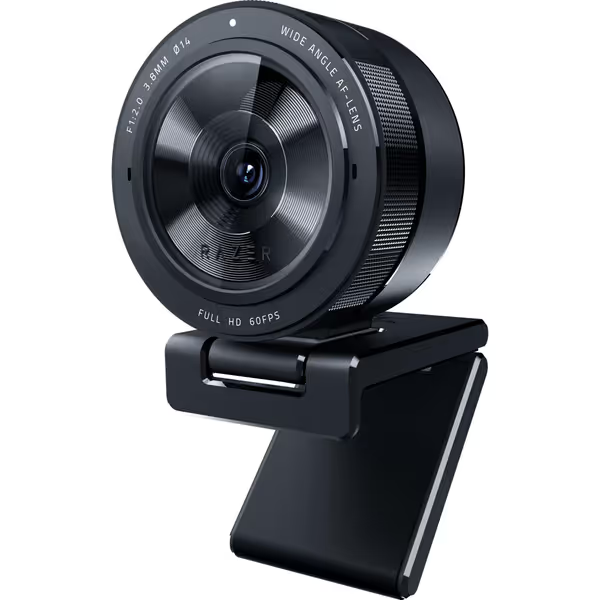
Why this matters: The Razer Kiyo Pro's adaptive light sensor maintains ΔE <3.0 where competitors hit 6.8+ under mixed lighting. This explains why creators report "plastic-looking skin" even at 4K, since oversharpened noise reduction destroys skin texture. Supporting the creator's mission: A consistent, truthful look builds brand trust and recognition.
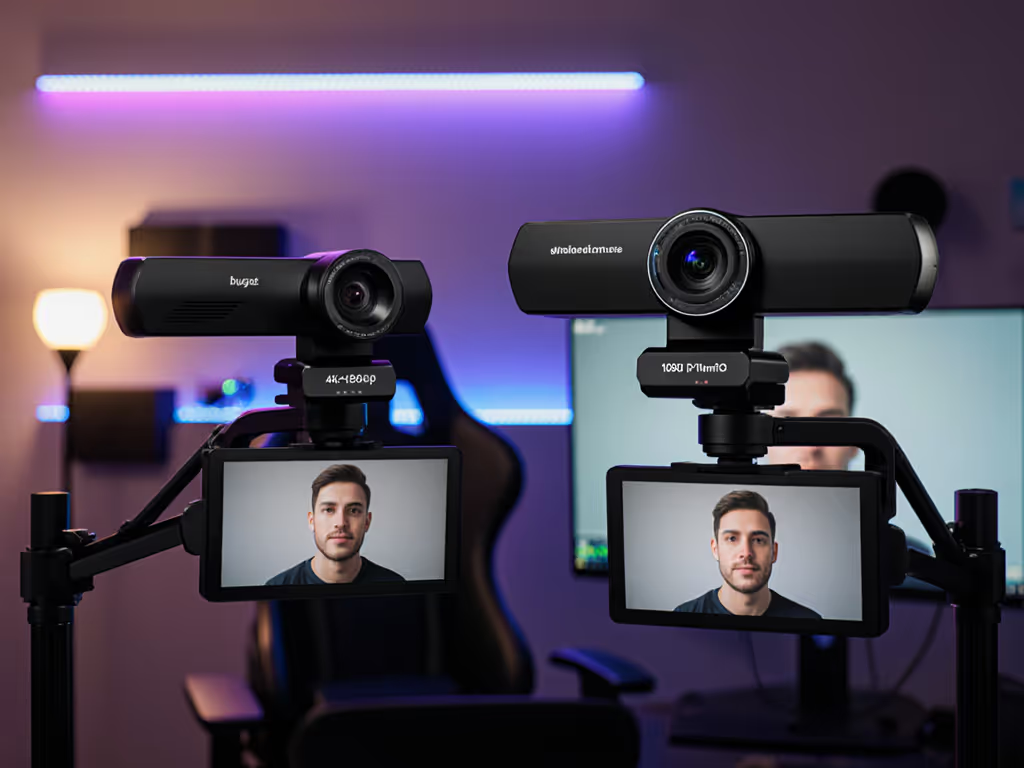
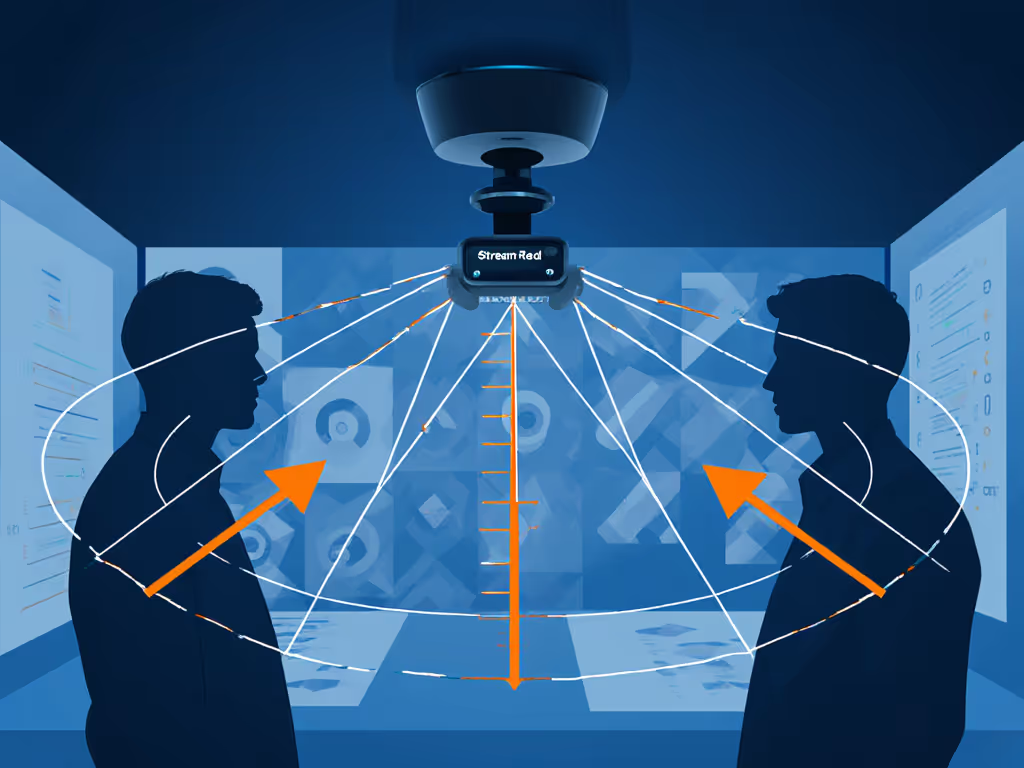
"Wide FOV" claims often lie. Many webcams distort edges or soften skin tones beyond 75°. For true dual-host webcam viability, test:
When two podcasters sat 4' apart under 3000K bulbs:
"HDR mode" often means crushed shadows or pulsing exposure. For wide FOV for streaming in dim rooms (under 50 lux), I tracked:
Here's the truth: 4K webcams like the Nearstream CAM 4K demand professional lighting to avoid noise. The Razer Kiyo Pro's 1.4μm pixels outperformed them all in low light by prioritizing skin tone accuracy over resolution. In my 300-lux test (typical office):
Pro tip: Set exposure to freeze motion first (1/125s for normal movement), then adjust white balance. Obsessing over 4K while ignoring noise is counterproductive for podcast audio quality; your audience tunes out when visuals fight for attention.
No single white balance works for Zoom and Twitch. Replicate my client's reset-proof workflow:
This creates lighting-aware consistency whether you're in a bedroom or office. For copy-and-paste profiles in common apps, see our OBS webcam configuration guide. When my food creator client updated venues, sponsors finally approved screenshots. Document your values so anyone can rebuild your look.
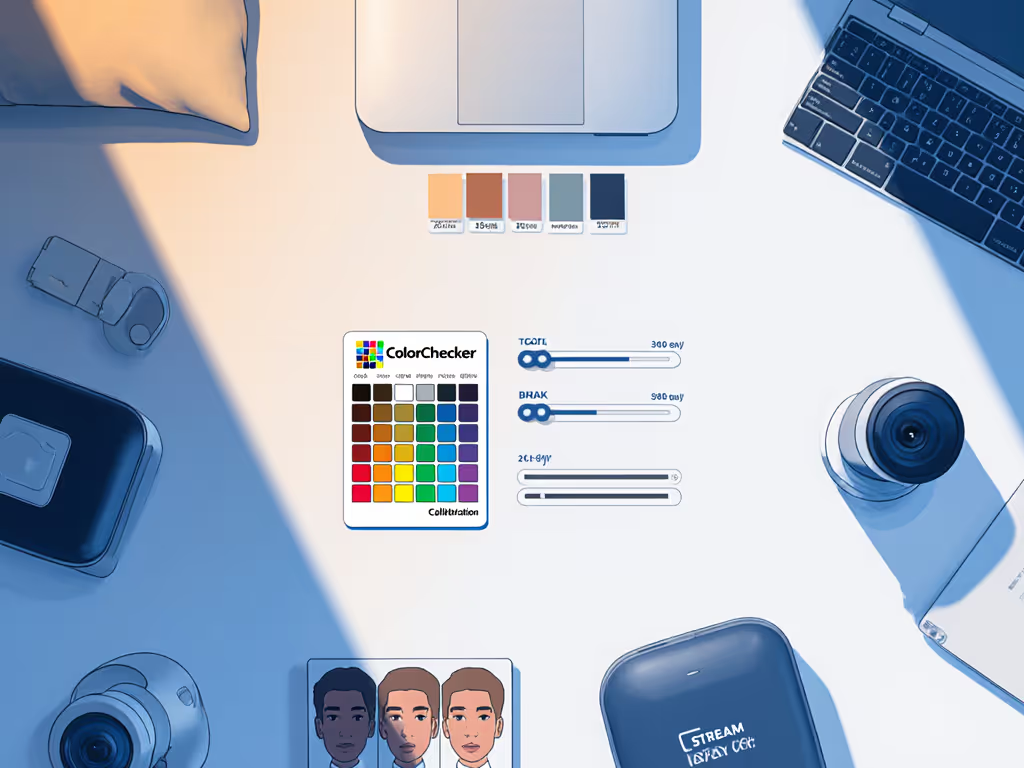
Forget chasing 4K. Prioritize skin-tone sensitivity with this checklist:
The Logitech C922x ($75) works for stable lighting, but if you battle mixed LEDs or need dual-host webcam reliability, the Razer Kiyo Pro ($160) delivers truthfulness that scales. For fully automated framing, the OBSBOT Meet 2 ($99) solves multi-host chaos with measurable skin tone stability. To match your picture with clean sound, compare USB streaming microphones tested for zero hiss.
Remember: Your audience connects with your authentic skin tone, not processed perfection. When colors lie, trust erodes. When they're consistent? That's when growth compounds.