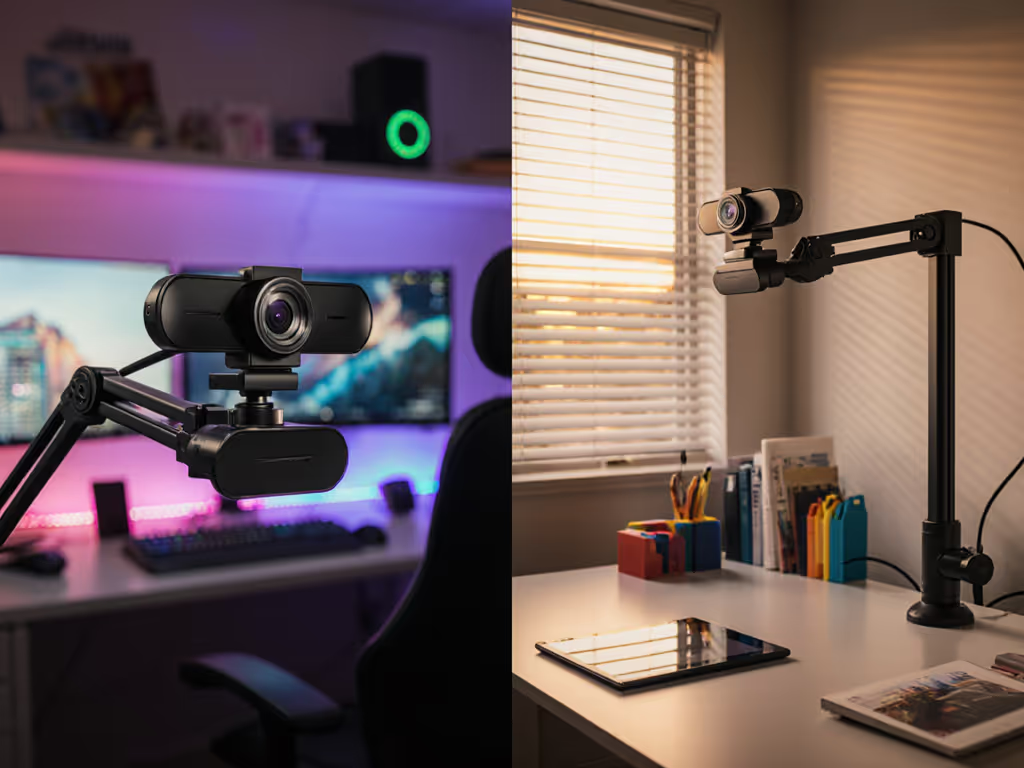
Setup & Technical Fundamentals
Specialized Camera Angles: POV vs. Overhead by Use Case
20th Apr•11 min read
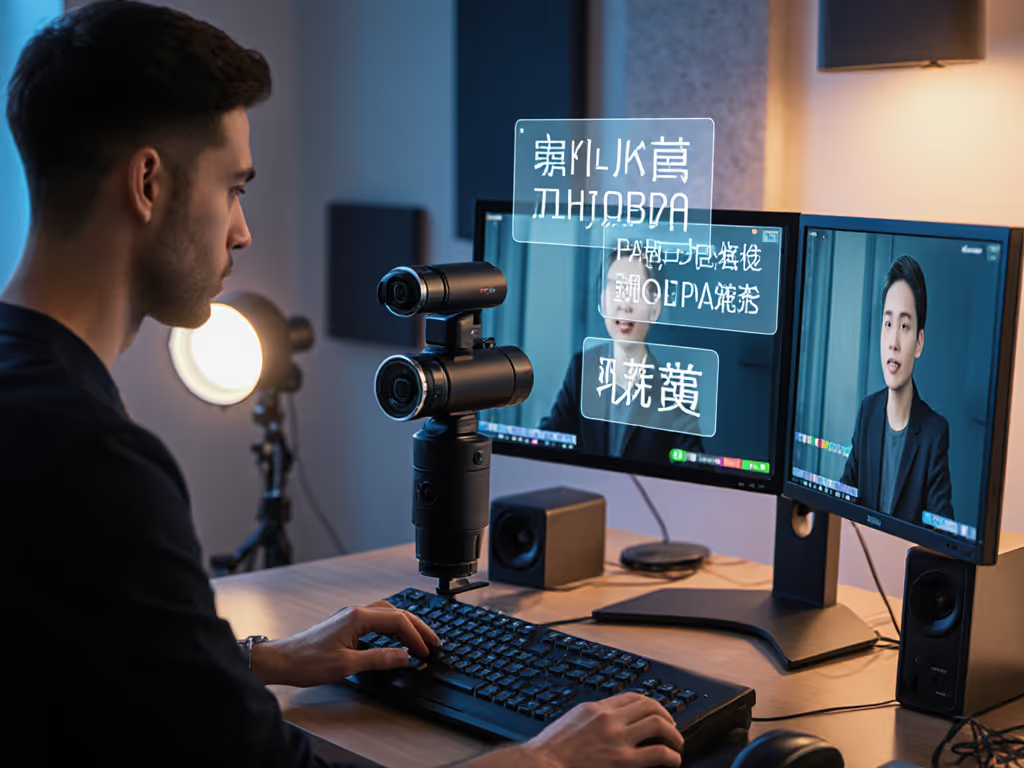
When you're broadcasting to a multilingual streaming webcam setup, you're no longer optimizing for a single viewer. You're calibrating for translators watching a secondary monitor, international audiences on different platforms, and potentially multiple speakers in frame (each with different skin tones, positions, and lighting). For per-platform differences that affect clarity and bitrate, see our platform-specific webcam settings guide. A translation-friendly webcam configuration isn't just about hardware; it's about dialing in settings so that speech is crisp, faces are consistently legible, and latency doesn't wreck lip-sync across language barriers.
Here's the procedural reality: most out-of-box webcam defaults are tuned for single-speaker, single-light setups. Multilingual streams break those assumptions. You need to lock your exposure, white balance, and frame rate so your translator (watching a close crop of the speaker's mouth) sees stable detail. You need autofocus that doesn't hunt when the camera cuts between a presenter and a co-host. You need settings that travel between OBS sessions, conferencing software, and archive uploads without drifting.
In a past charity stream, I watched a gaming cam drift a full second behind the translator's monitor feed because the exposure settings kept auto-adjusting between scene transitions. The fix wasn't a new camera: it was locking white balance, bumping the frame rate to 60 fps for motion clarity, and building that into a scene profile that replicated across both conferencing and OBS. That scramble became a checklist, and today, every multilingual stream I support runs the same readiness protocol from the start.
In a single-language stream, a soft exposure shift or a half-second autofocus hesitation is barely noticeable. In a bilingual streaming context, those micro-failures compound. Here's why:
Translator monitoring: Your translator is often watching a cropped, zoomed feed on a separate display. For dual-screen language workflows, check our bilingual streaming webcam picks optimized for translators. If your webcam's automatic exposure is pulsing in response to overhead lights, the translator's screen will show flicker in the mouth and eye region, exactly where they need lock-in for accuracy.
Lip-sync and latency stakes: Across-language streams typically funnel video through multiple platforms (Twitch + YouTube simulcast, or Zoom bridge + OBS output). Each routing layer adds latency. Minimize added delay by following our streaming internet requirements checklist. If your camera is introducing an additional 40-60 ms of autofocus lag or processing delay, you're stacking latency on top of codec delays. The cumulative drift becomes visible on translations that depend on precise mouth movement.
Color rendering across viewers: International audiences are watching on different displays, color spaces, and streaming-platform bitrate budgets. If your webcam is applying aggressive noise reduction or skin-tone smoothing in-firmware, that processing is baked into the stream. Translators and viewers on lower-bandwidth feeds see a muddy, detail-poor face. Speech clarity suffers perceptually, even if audio is unchanged.
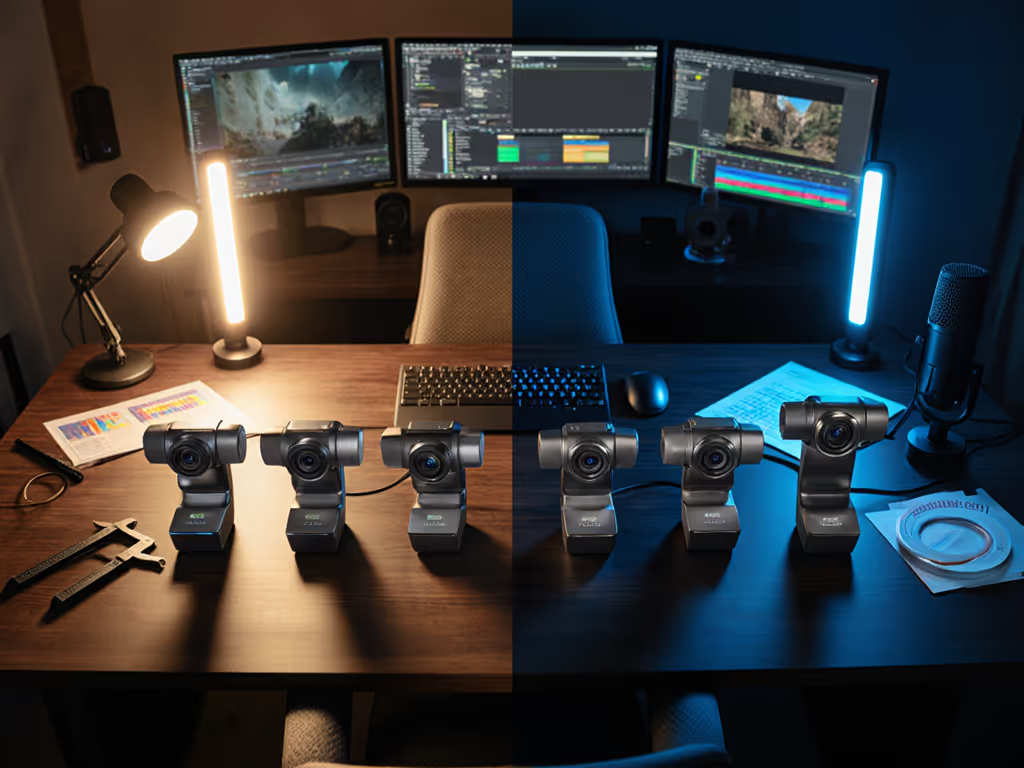
Frame-rate consistency for multi-speaker cuts: If your primary speaker is locked at 30 fps and your translator's insert camera or secondary host is at 25 fps (or variable), cuts between them look stuttered or jump in motion. Fast-moving hands (common in multilingual contexts where gesture clarifies meaning) become a blur on one camera and staccato on the other.
Begin by selecting a frame rate and locking it in firmware, not just in OBS. Most clear speech capture setups for translators benefit from 1080p60 as the baseline. If you're unsure whether to prioritize 1080p60 or 4K, read our 1080p vs 4K streaming guide for the real-world tradeoffs. Here's why: 60 fps means motion is fluid (essential for gesture-reliant multilingual discussion), and it gives post-production more temporal resolution for transcription and archival.
Procedure: