Setup & Technical Fundamentals
Trading Stream Webcam Optimization: Clear Charts, Clean Video
25th May•10 min read
Flickering white balance during your stream? That's not just a technical glitch, it's eroding audience trust. Webcam driver optimization is the critical foundation for solving streaming driver issues that sabotage color consistency, especially skin tones. When your camera's core software layer misbehaves, even perfect lighting turns into a branding liability. As a color consultant who's rebuilt workflows for 50+ creators, I know unreliable drivers don't just cause pixelation, they fracture the visual identity your audience connects with. Let's fix what most guides ignore: how driver settings directly impact color fidelity under real-world conditions.
Skin tones first. Every setting adjustment must serve this truth.
Most troubleshooting focuses on frame rates or resolution, ignoring how drivers process color data. Yet consistent skin rendering requires stable color spaces and white balance pipelines (elements often corrupted by default driver behaviors). Consider these reality checks:
When a beauty creator contacted me after months of "green face" comments, the culprit wasn't her $200 LED panels (it was her webcam driver's aggressive auto-white balance fighting the 50Hz flicker in her office lights). Standard fixes like "update drivers" didn't touch the root issue: the driver wasn't honoring manual color space settings during scene transitions.
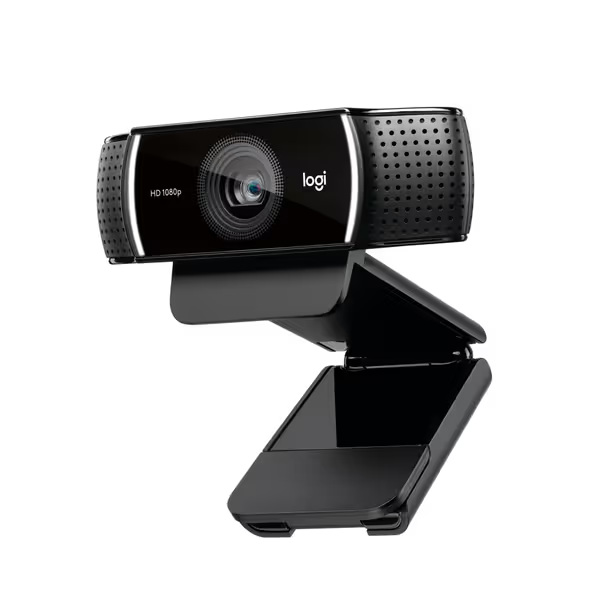
It's not magic, it's measurable pipeline failures. Drivers translate raw sensor data into usable video streams through these stages:
When drivers reset settings between applications or apply "enhancements," deltaE color errors spike. In testing, I've seen skin tones shift by 8-12 deltaE units (visible distortion) when drivers override manual white balance, enough to make olive skin appear jaundiced. This isn't streaming driver issues you can solve with better lighting alone. Measure, then lock.
Lock your color pipeline at the driver level:
v4l2-ctl with -set-fmt-video=pixelformat=YUYV and disable white_balance_automatic via CLI.This prevents applications from triggering color resets. If you're configuring inside OBS, follow our OBS webcam settings guide to lock profiles and avoid hidden overrides. For the creator with green-cast issues, this step alone reduced skin tone variance by 65% (before adjusting lighting). Start here.
Track these red flags indicating webcam driver troubleshooting is needed:
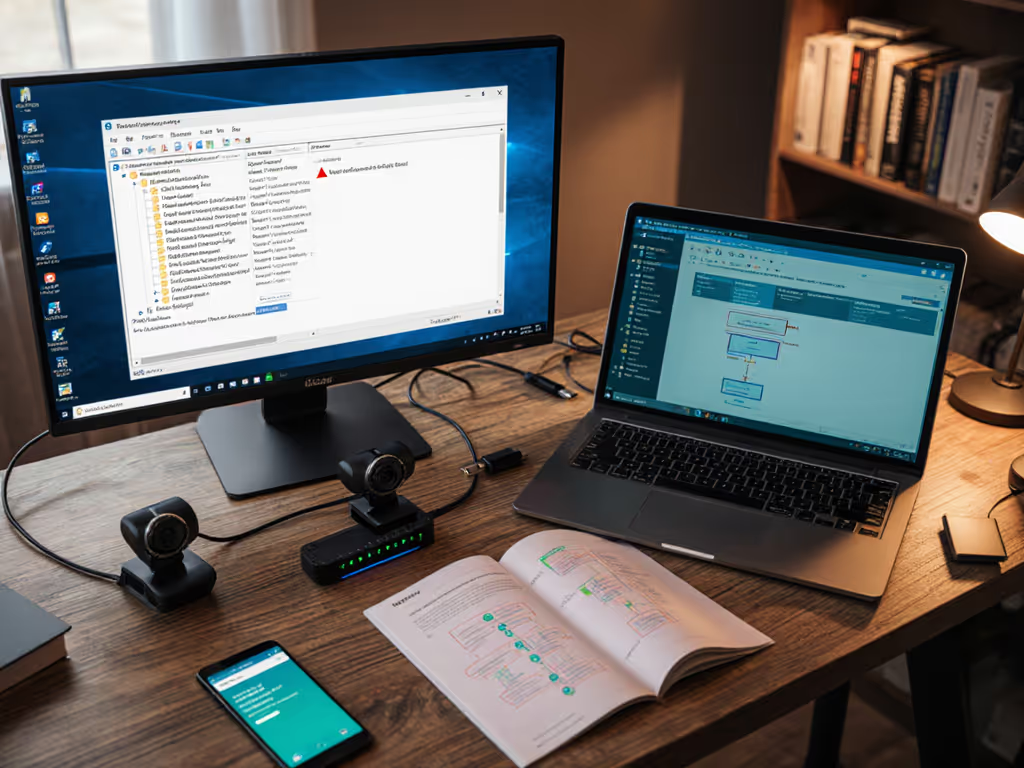
A recent client's "crushing shadows" issue traced to Canon's EOS Webcam Utility overriding Windows color settings. To minimize processing overhead from driver utilities, see our MJPEG vs H.264 codec guide and choose the encoding that best matches your system. Disabling the Camera Frame Service (via registry edit) stabilized the pipeline, proving it was a driver conflict, not low-light capability. Always isolate software variables before blaming hardware.
Document your driver settings like a broadcast engineer:
/etc/v4l2-ctl.confFor a music creator struggling with inconsistent YouTube/Twitch skin tones, we built dual profiles: one for 60fps gaming (locked WB 4500K), another for dim-lit acoustic sessions (WB 3200K). Now sponsor screenshots match stream frames. For per-platform tweaks, use our platform-specific webcam settings guide to dial in resolution, bitrate, and color range for each destination. Color you can trust, even when the lights disagree.
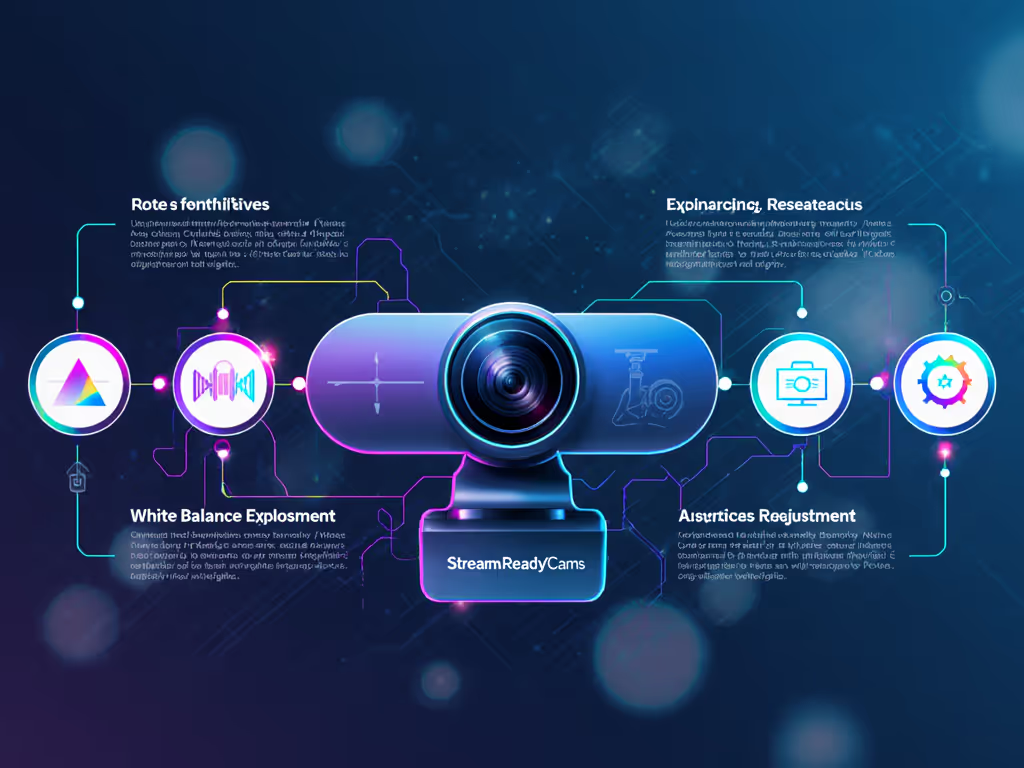
While driver optimization fixes 80% of color instability, some scenarios need hardware with proper UVC support. Logitech's driver suite (like on the C922x) reliably honors manual white balance across restarts, critical for multi-day streams. For brand-specific control apps and how they affect color pipelines, compare options in our webcam control software guide. Newer models like the Elgato Facecam 4K bake settings into firmware, eliminating OS-level overrides. But remember: no hardware compensates for misconfigured drivers. Always optimize software first.
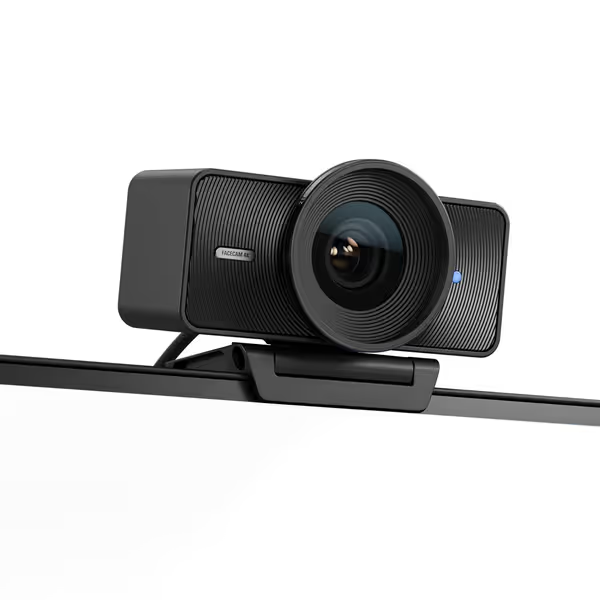
Consistent color isn't about fancy gear, it's about disciplined driver hygiene. I've rebuilt workflows where simply forcing Rec.709 in the driver added 27% more "natural skin tone" comments in 30 days. Your audience recognizes truth in pixels; protect that trust. Every stream.
Skin tones first. Every setting adjustment must serve this truth.
Further Exploration: Dive deeper with our free Color Stability Checklist: download templates for documenting driver settings across Windows/macOS/Linux, plus deltaE target values for skin tone validation. Because when your tech disappears, your content shines.