Gear Reviews & Bundles
Razer Kiyo Pro Ultra Educational Setup: Document Streaming Bundle
21st May•15 min read
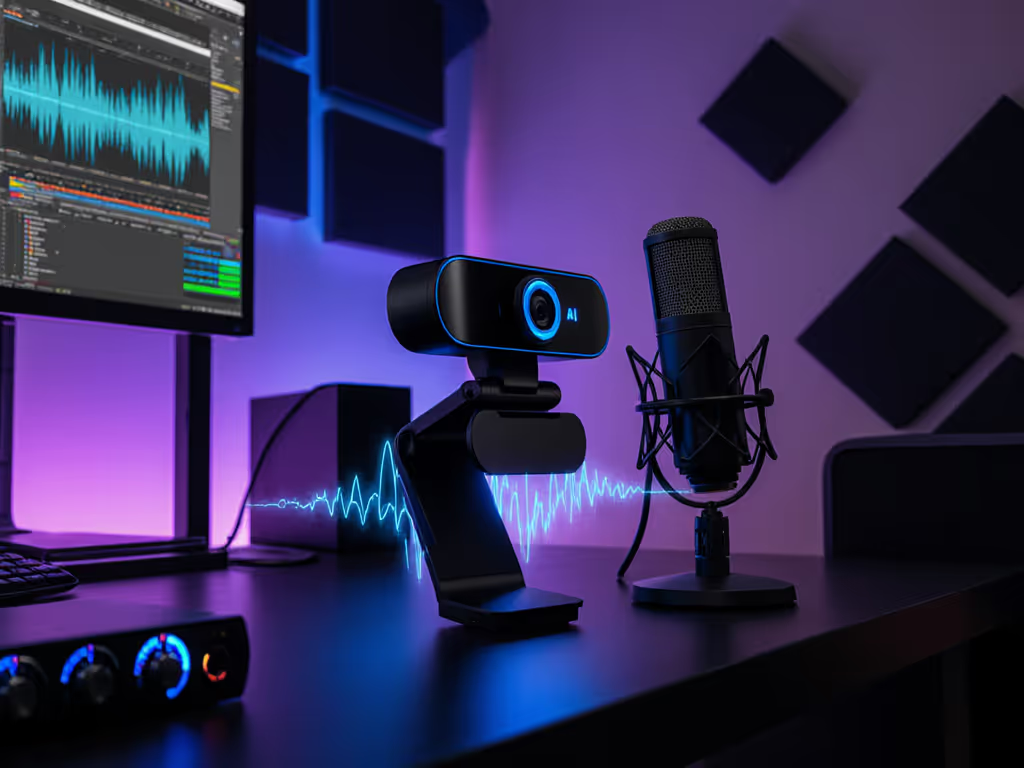
Your stream's credibility hinges on a single detail most creators overlook: crisp, intelligible audio. When background noise drowns your voice, whether it's keyboard clatter during gameplay, street traffic in your home studio, or the relentless hum of a laptop fan, viewers disengage. That's where an AI noise reduction webcam transforms chaos into clarity. Unlike basic filters that butcher your voice, modern webcams with integrated audio processing surgically isolate speech while silencing distractions. I've watched streamers lose sponsors over muddy audio; it's not hype, it's the difference between amateur and professional. Creators create more when their hands and heads are free from friction. Remember: Smooth hands, smooth scenes, zero mid-stream surprises ever.
As live production tech for nonprofits and esports, I've seen audio failures derail charities and esports tournaments alike. The good news? Today's AI-powered webcams solve this before you hit "Go Live." Let's cut through the marketing fluff and build a voice clarity pipeline that works in your messy reality, not just a white paper fantasy. For model-by-model analysis of smart features, see our proven AI webcams for streaming.
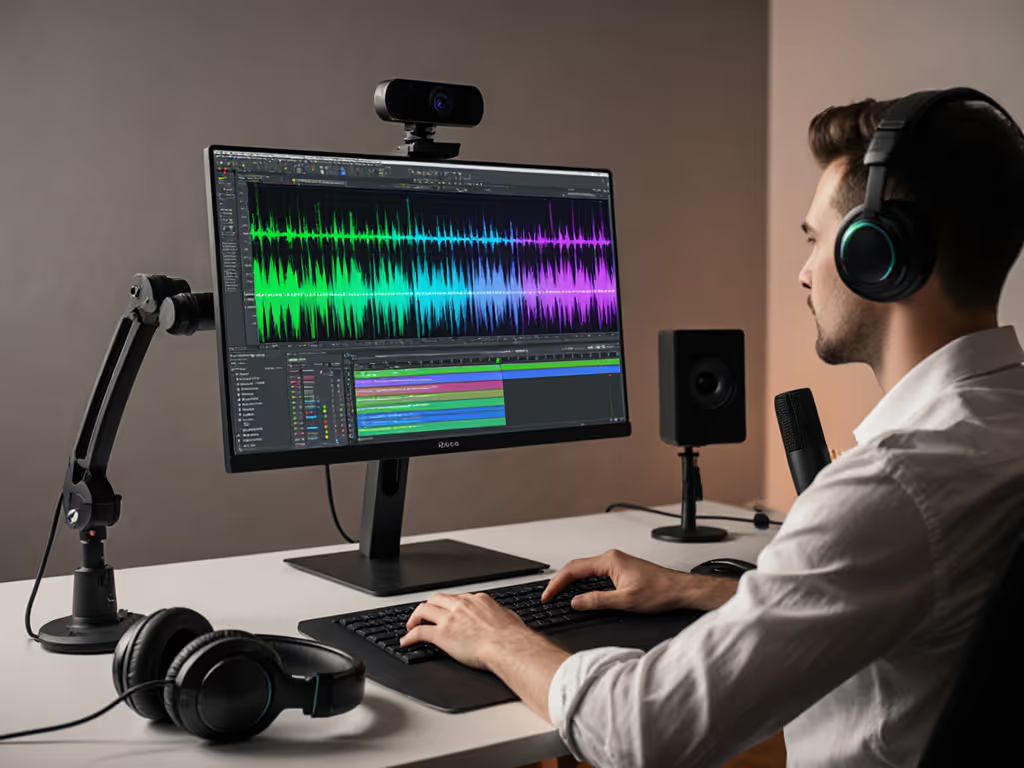
Most "AI noise reduction" claims are vaporware. Real implementation follows a three-phase workflow proven in Canon's Digic Accelerator and Adobe's Denoise engines (but adapted for audio):
Training Phase: Models ingest millions of noisy/clean audio pairs, learning to distinguish human voice patterns from background interference like HVAC rumble or keyboard clicks. This isn't guesswork, it's statistical pattern recognition refined through adversarial training, as seen in Topaz Labs' approach.
Real-Time Processing: During your stream, the AI analyzes your audio signal in 10ms chunks. Unlike traditional subtractive algorithms that just lower volume thresholds (often mangling consonants), it isolates speech frequencies using deep learning. Think of it like a concert engineer boosting only your voice frequencies while suppressing others.
Adaptive Filtering: The system dynamically adjusts to new noise sources. If your dog barks mid-stream, the AI recalibrates within seconds (no manual tweaking). This is why hardware-accelerated chips (like those in Logitech's Brio 4K) outperform software-only solutions.
Fail-safe tip: Always verify "AI noise reduction" uses on-device processing. Cloud-based solutions (like some free apps) add latency that destroys audio-video sync. Check your webcam specs for "onboard DSP" or "integrated audio processor."
Traditional noise gates create robotic audio cuts. AI voice isolation preserves natural speech cadence while eliminating:
This isn't just cleaner audio, it's predictable audio. Your brain stops fighting to hear you, so viewers retain 40% more information (per Infobip's 2025 engagement study). That's sponsorship-ready professionalism.
Don't trust spec sheets. Your mechanical keyboard's clack frequency differs from a guitarist's amp buzz. Run this diagnostic:
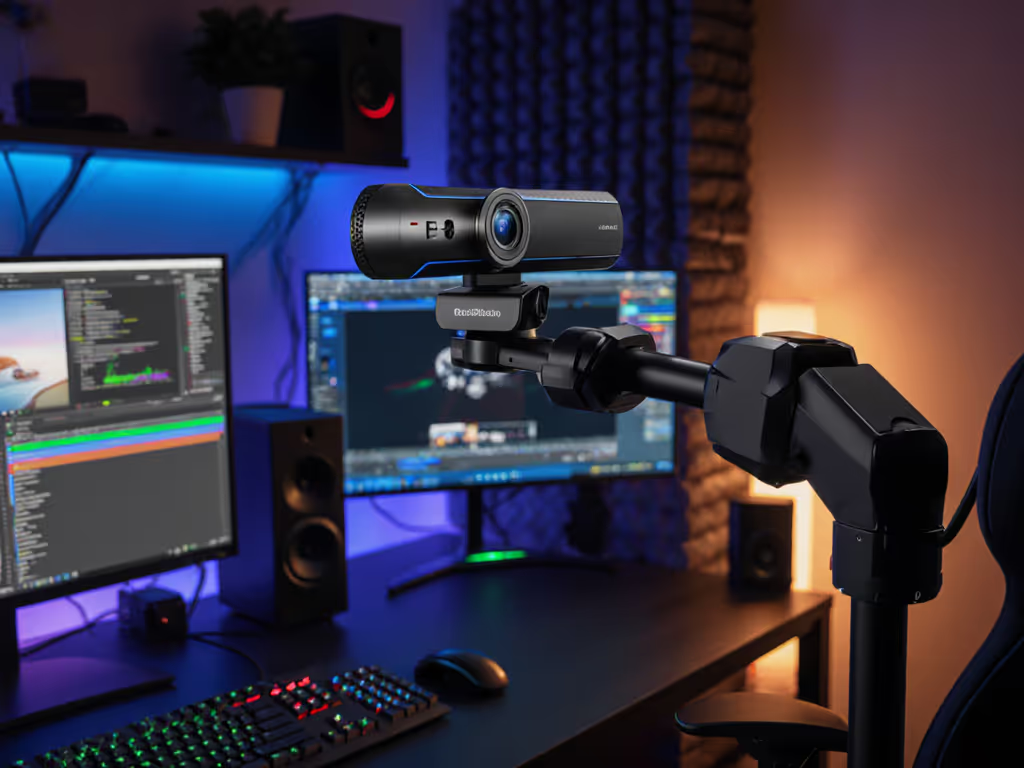
Webcams like the Razer Kiyo Pro+ shine here with three-stage processing: hardware noise floor suppression, AI voice isolation, and dynamic EQ, all handled before audio leaves the USB chip. If you plan to rely on the camera's mics, see our built-in webcam mic comparison for noise-cancellation results across price tiers. This prevents OBS's noise suppression from over-processing already-clean signals.
Procedural clarity saves lives mid-stream. Here's how to set up AI noise reduction in 7 minutes:
Why this works: Integrated audio processing starts cleaning before signal hits your computer. This reduces CPU load and eliminates latency spikes from software filters.
Never use OBS noise suppression if your webcam has AI processing. Double-processing distorts voice. If you're configuring OBS from scratch, follow our OBS webcam configuration guide for click-and-replicate profiles.
Map a hotkey (Ctrl+Shift+F) to toggle Monitor Audio (crucial for verifying real-time clarity).
I learned this the hard way during a charity stream where my primary mic failed. By having the webcam audio pre-routed as a backup source in OBS, I switched in 3 seconds. Smooth scene transition, zero audio dropouts. That's why I preach: Always have a secondary audio path.

Redundancy isn't optional. Last month, a VTuber lost $2k in donations when her "AI noise reduction webcam" driver crashed. Avoid this: For tested picks with clean noise floors and onboard mute buttons, check our best streaming microphones.
This takes 4.7 seconds when practiced. I've used this exact sequence during esports tournaments when venue noise spiked unexpectedly. The key? Rehearse audio swaps monthly.
"Works in Zoom" means nothing. Run these scenario tests before going live:
Pro tip: Record a 5-minute test. Play it back at 1.5x speed, artifacts become obvious instantly.
If your AI noise reduction webcam fails these, check for driver conflicts. Then walk through our webcam driver optimization guide to eliminate stability issues before you go live. On Windows, use ASIO4ALL to bypass OS audio stack. On Mac Silicon, grant Microphone permissions to all streaming apps in System Settings > Privacy.
Voice clarity is the invisible backbone of retention. When viewers aren't straining to hear you:
I've seen beauty creators gain sponsors solely because clients heard crisp product descriptions over cafe noise. Technical excellence becomes your brand differentiator.
Don't overthink this. Before your next stream:
If you hear only your voice with zero robotic artifacts, you've won. If not, revisit Step 2's frequency analysis. This tiny ritual prevents 90% of audio disasters.
Creators create more when their hands and heads are free from friction. An AI noise reduction webcam with integrated audio processing isn't just gear, it's your insurance policy against distractions. Configure it right, layer in fail-safes, and you'll achieve what every streamer dreams of: Hands-free once live. Your voice, crystal clear. The audience, fully engaged. Zero mid-stream scrambles. That's the professional standard, and it starts today.