Setup & Technical Fundamentals
Trading Stream Webcam Optimization: Clear Charts, Clean Video
25th May•10 min read
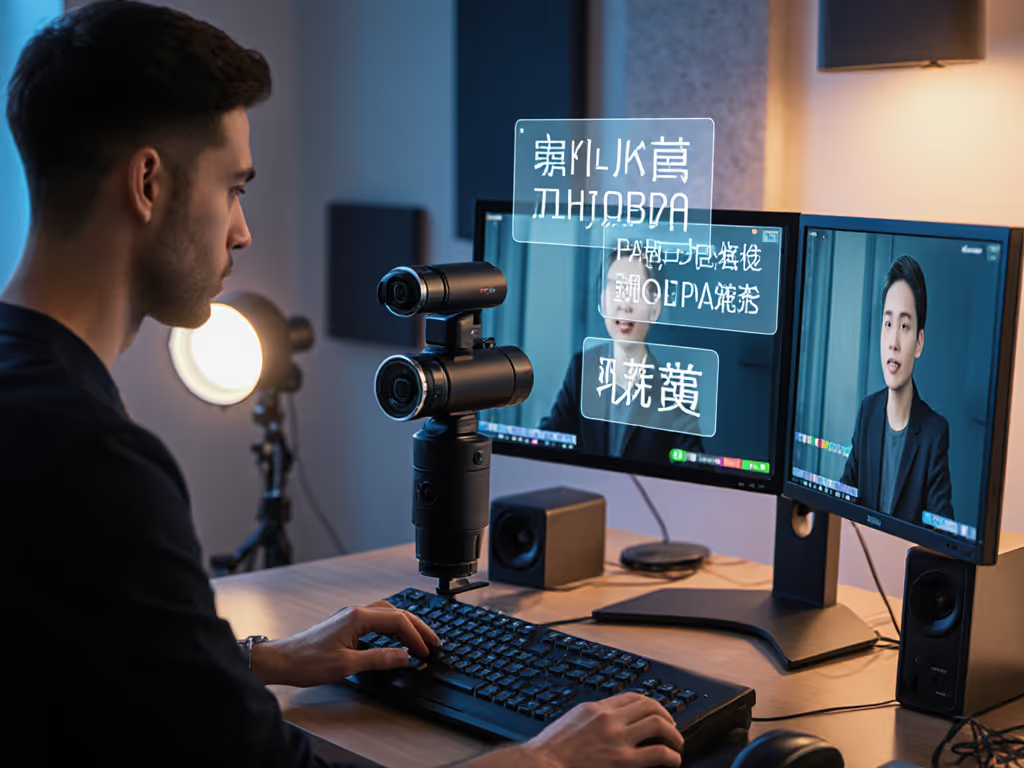
If you've ever battled blown-out windows or muddy shadows during a stream, HDR webcam technology might seem like your salvation. But here's the hard truth: HDR isn't a magic fix for most live streams. As a production tech who's built pipelines for nonprofit streams and esports tournaments, I've seen creators waste precious prep time chasing HDR specs that ultimately created more problems than they solved. Streaming HDR benefits only materialize in specific scenarios (when you manage dynamic range intentionally and understand platform limitations). Let's cut through the marketing noise with actionable guidance that actually reduces friction instead of adding it.
HDR (High Dynamic Range) isn't about making everything brighter (it's about capturing detail across extreme light variations in a single frame). In a true implementation, HDR combines multiple exposures (underexposed for highlights, normal, overexposed for shadows) into one image that preserves both bright window details and shadowed desk textures. Consumer webcams typically use single-frame computational HDR, which mimics this effect through software processing rather than true multi-exposure capture.
This distinction matters because:
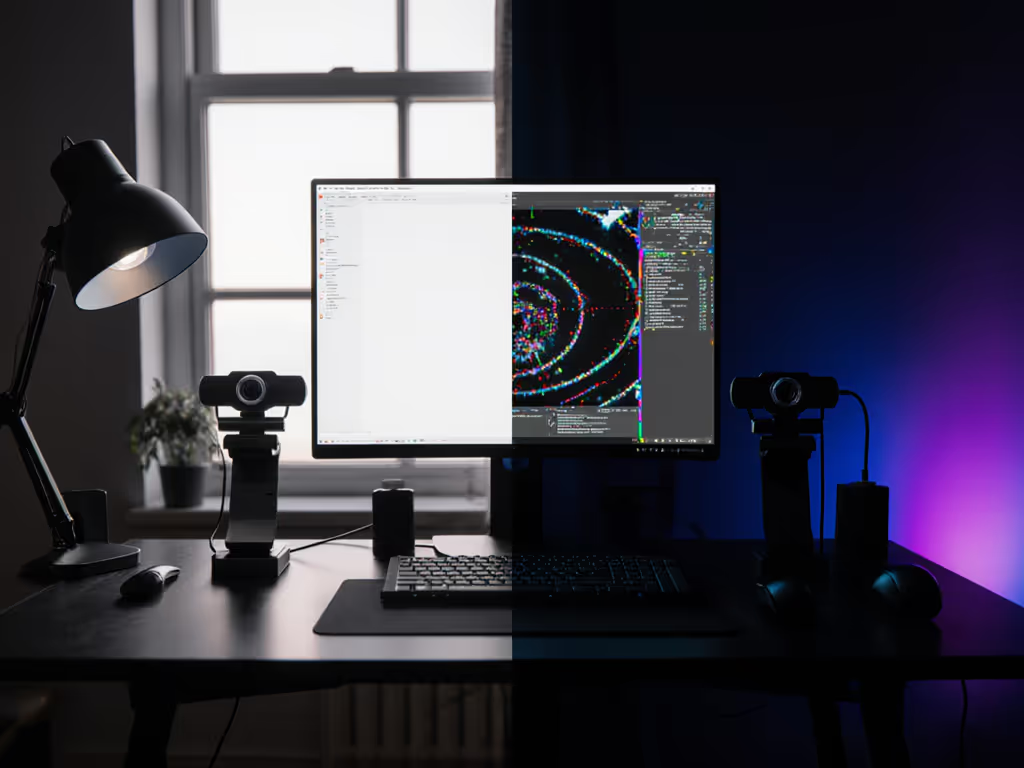
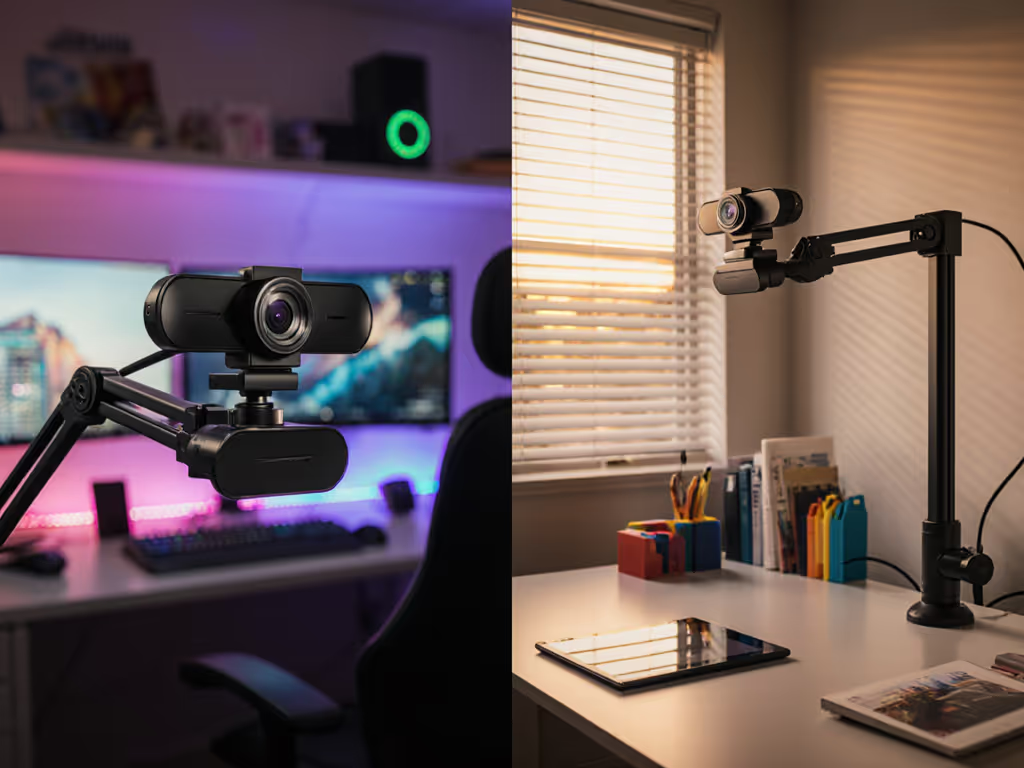
HDR shines when your setup has extreme contrast (like a streamer positioned against a sunlit window). In these scenarios, HDR prevents facial details from disappearing into silhouette while retaining window view clarity. This aligns with findings that HDR delivers its most noticeable improvements in "bright-light conditions" where conventional cameras lose highlight detail.
Pro tip: If your room has consistent lighting patterns (e.g., south-facing window), enable HDR during daylight hours but disable it at night. The dynamic range requirements change dramatically when ambient light shifts. If you can control the scene, start with this streaming lighting setup guide to reduce contrast before toggling HDR.
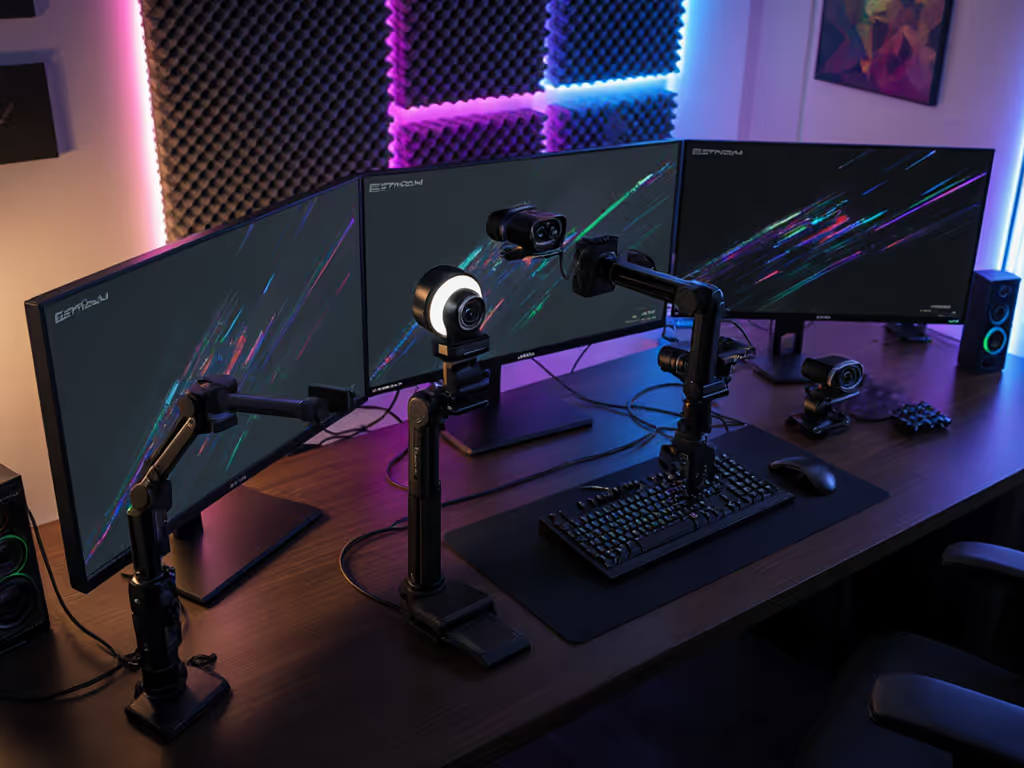
Creators using RGB accent lighting alongside daylight-balanced key lights often struggle with exposure pulsing. HDR webcams with proper tone mapping (like an HDR PQ curve) can stabilize these transitions better than SDR's limited gamma curve. This is particularly valuable for beauty streamers where consistent skin tones trump absolute sharpness.
This is the elephant in the room: platform HDR support for live streaming remains abysmal. YouTube supports HDR video uploads but downconverts all live streams to SDR. Twitch doesn't support HDR at all. Even Zoom's "HDR mode" merely applies an SDR tone map to HDR sources. You're optimizing for a delivery chain that strips your HDR efforts before viewers see them. If you're optimizing per platform, see our platform-specific webcam settings guide to match each service's SDR limits.
Many creators misunderstand dynamic range for webcams as "more is always better." But exceeding your display's capabilities creates false detail. Consumer monitors typically handle 300-500 nits, while HDR webcams may capture 1,000+ nits. Without proper grading, this creates unnatural contrast that looks "processed" rather than cinematic (a pet peeve for color-critical creators).
True HDR content requires specialized monitoring and grading. HDR video brings a step change in image quality but requires careful exposure and a precise workflow. For most streamers, this means:
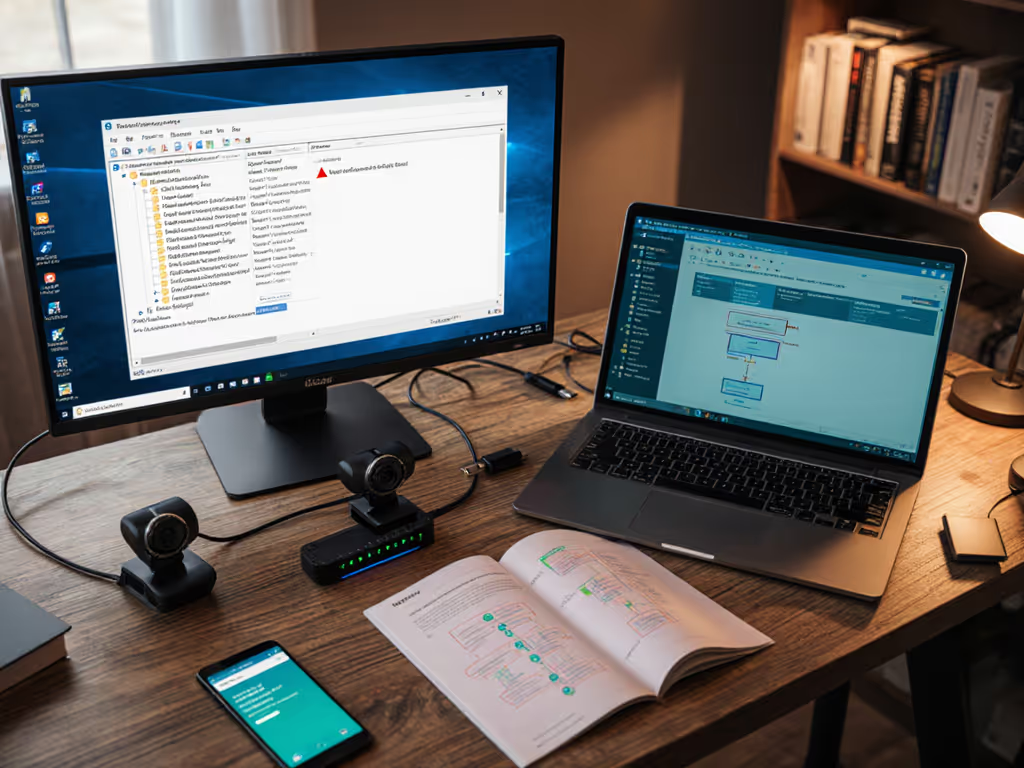
Before enabling HDR, run this 3-step diagnostic:
Grab a light meter app (or use your phone's camera histogram) to measure:
If the ratio exceeds 10:1 (e.g., 100 nits on face vs 1,000 nits at window), HDR may help. Below 5:1? You'll likely see more artifacts than benefits.
Check:
Record yourself moving hands rapidly across the frame. Review footage for:
Do this before going live: Create an OBS scene collection preset for HDR testing. Duplicate your main scene, enable HDR, and run a 5-minute test stream to_vkaki_ or another private destination. Compare latency metrics and visual artifacts side-by-side. Use our OBS webcam configuration guide for proven profiles you can apply in one click.
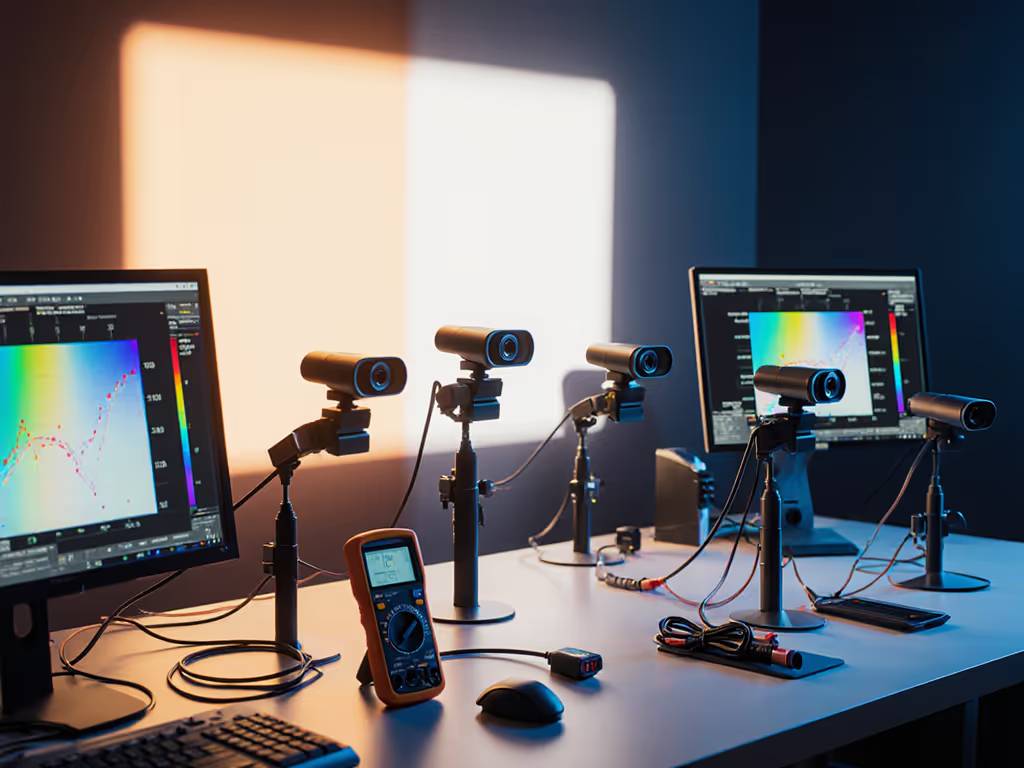
Based on my work with 50+ streaming setups this year, avoid HDR if:
Remember that charity stream where our gaming cam drifted a full second behind overlays? We solved it by simplifying our pipeline, not adding more processing layers. Smooth hands, smooth scenes, zero mid-stream surprises ever.
HDR webcam technology delivers tangible streaming HDR benefits only in controlled scenarios with extreme lighting contrast and no fast motion. For most creators, investing in better lighting (a $50 LED panel) yields more consistent results than chasing HDR specs. If you do implement HDR:
The goal isn't technical perfection, it's creating reliable systems so your focus stays on performance, not troubleshooting. When your hands and head are free from friction, you create more. And that's the ultimate win for any streamer.
Further Exploration: Check Canon's detailed guide on HDR video workflows for production-grade HDR implementation (requires grading expertise). For most streamers, mastering exposure bracketing in SDR mode will serve you better than jumping into HDR prematurely.