Setup & Technical Fundamentals
Trading Stream Webcam Optimization: Clear Charts, Clean Video
25th May•10 min read
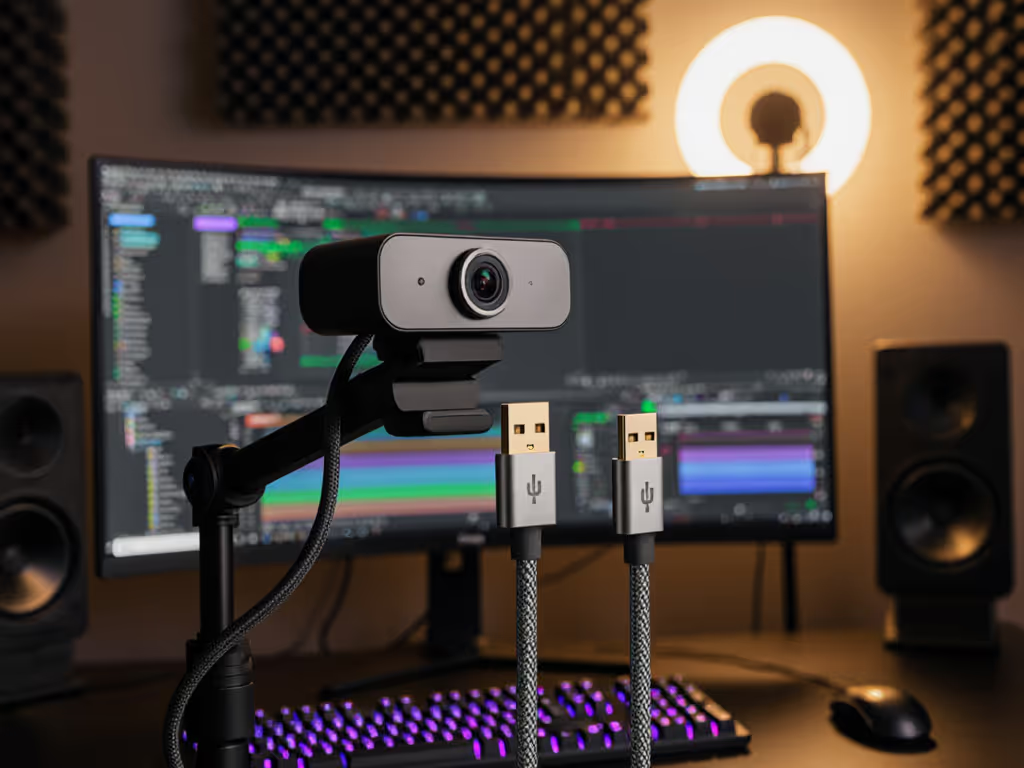
Webcam USB connections and streaming cable optimization are rarely discussed, yet they directly affect whether your camera performs reliably, or fails when you go live. A compromised USB cable doesn't just drop frames; it introduces hidden lag, intermittent exposure shifts, and the kinds of technical failures that erode viewer trust. For creators chasing a consistent, professional look across sessions, cable quality matters as much as the camera itself.
Most creators assume their webcam struggles because the hardware is cheap or the software is bloated. In reality, a signal-degraded USB connection can mask what the camera is actually capable of. I've diagnosed dozens of streams where a camera performing well in testing looked unstable on air, and the culprit was often a long, low-quality USB cable competing for bandwidth with a dozen other devices. Once we simplified the USB chain and upgraded the cable, skin tones stabilized, autofocus stopped hunting, and the look held consistent session to session. That reliability is what sponsors notice.
Your USB cable isn't just a convenience, it's a data highway. Webcams transmit uncompressed or lightly compressed video frames in real time. The longer the cable, the greater the opportunity for signal degradation and data loss.[1] A cable longer than six feet can introduce enough noise that your camera either reduces resolution, drops frames, or exhibits intermittent glitches that are nearly impossible to diagnose on the fly. Considering ditching cables altogether? Compare stability trade-offs in our wired vs wireless streaming tests.
Beyond length, cable shielding and connector quality affect how cleanly that signal travels. A cheap, long USB cable can make a capable 1080p60 camera behave as if it's struggling to manage 720p30. Your platform (OBS, Streamlabs, or Zoom) will report dropped frames or latency, but the real bottleneck is the physical connection, not your CPU.
When a USB cable loses signal integrity, your camera can't reliably report its sensor data. This cascades into several visible problems:
Each of these issues compounds. A creator under soft white LEDs plus RGB ring light will see the white balance problem first. But if the underlying USB cable is marginal, even upgrading the lighting won't fully stabilize the shot. Color you can trust, even when the lights disagree, is the goal, and it starts with a solid data path.[1] Then dial in light placement and color with our streaming lighting setup guide for faster white balance lock.
USB 2.0 offers up to 480 Mbps of bandwidth. This is sufficient for casual 1080p video at 30 fps or lower bitrate streams.[2] However, it struggles with 4K, high frame rates (60 fps), or simultaneous data from multiple USB devices. If you have a USB 2.0 port (black insert) and you're streaming at 1080p60 or pushing 4K, you're leaving headroom on the table.
USB 3.0 (blue insert) jumps to 5 Gbps, roughly 10 times faster than USB 2.0.[1] This bandwidth supports 1080p60 comfortably, handles 4K30 without latency, and leaves room for multiple simultaneous devices without contention.[2] Most professional streamers use USB 3.0. If your camera came with a USB 3.0 cable, plugging it into a USB 3.0 port ensures your camera can use all the bandwidth it needs.[1]
USB-C and USB 4 offer even higher ceilings (10 Gbps and beyond), plus better power delivery.[3] This is becoming standard on newer cameras and is future-proof, but for typical 1080p or 4K streaming, USB 3.0 is already overkill in terms of raw speed. The real benefit of USB-C is port reversibility, durability, and the ability to power more complex cameras (e.g., those with built-in fill lights or fans).
Bottom line: Use the fastest port your camera supports. A basic 1080p webcam performs identically on USB 3.0 and USB-C if the camera is engineered to only draw what it needs. But why settle? Faster ports offer stability headroom.[3]
Yes, measurably. Cables longer than 6 feet are subject to increasing signal loss, especially if they're low-cost or unshielded.[1] This doesn't mean your stream instantly fails, but the camera must work harder to correct for the degraded signal. Exposure, white balance, and autofocus all become less stable.
If you need a longer run, use an active USB repeater cable rather than a passive extension.[1] Active repeaters have built-in hardware that regenerates the signal, so data arrives cleanly even at 15-30 feet. Passive extensions amplify problems; avoid them for video.
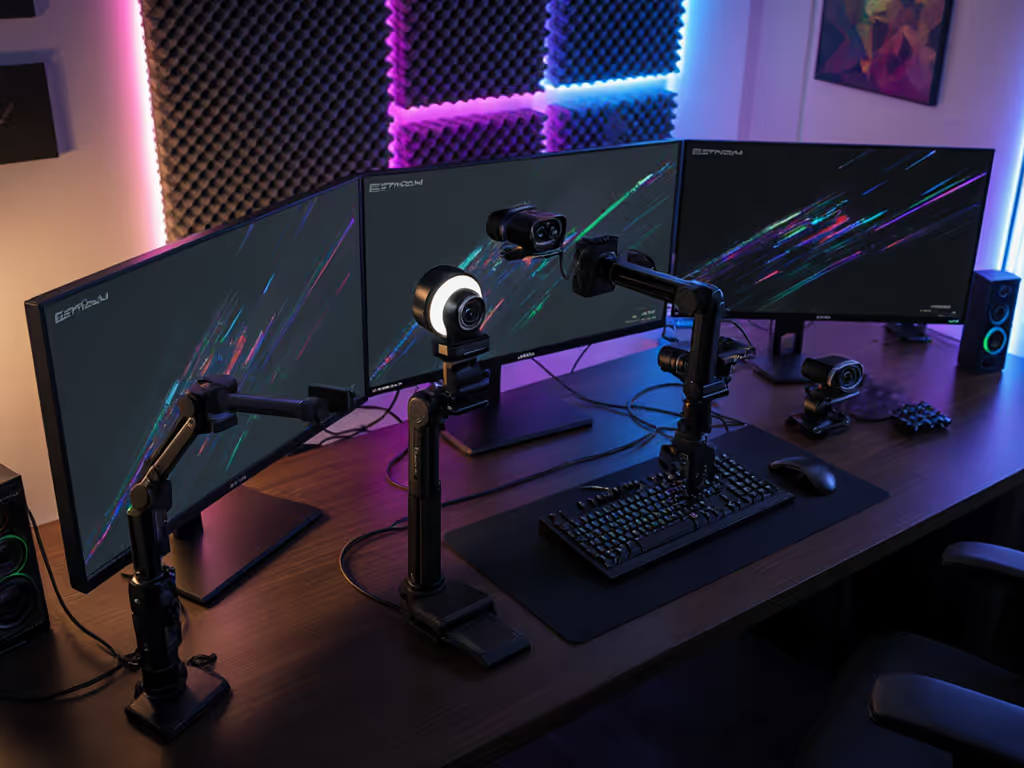
In practice: if you can keep your camera within 6 feet of your computer's USB port via a direct cable, do it. If your desk setup or multi-monitor rig requires distance, invest in an active repeater. The $20-30 difference is negligible compared to the stability you gain.[1]
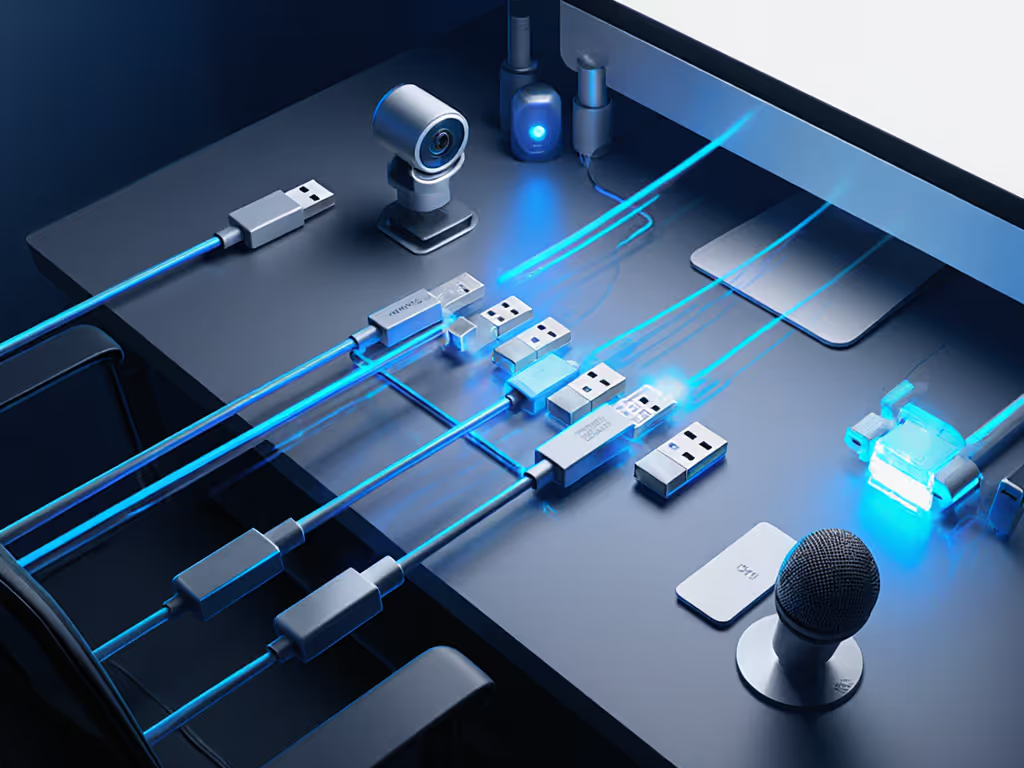
A USB hub distributes the bandwidth of a single upstream USB port across multiple downstream devices.[1] If you plug your webcam into a hub alongside a microphone, stream deck, lighting controller, and hard drive, each device competes for that shared bandwidth.
For streaming, this is a common setup, and a common failure point. When bandwidth contention occurs, your webcam doesn't always lose, but it might, depending on which device demands data first. This creates intermittent glitches: occasional frame drops, brief autofocus lockups, or momentary white balance shifts. These aren't catastrophic, but they're visible on stream and erode the professional look you're building.
Best practice: Plug your webcam directly into your computer's USB port, not a hub.[1] If you must use a hub, ensure it's a powered hub (with its own power supply) so all devices draw from an external source rather than competing for computer power.[1] And if possible, connect the webcam to the fastest available USB port on the hub; reserve slower ports for keyboards, lights, or other low-bandwidth gear.
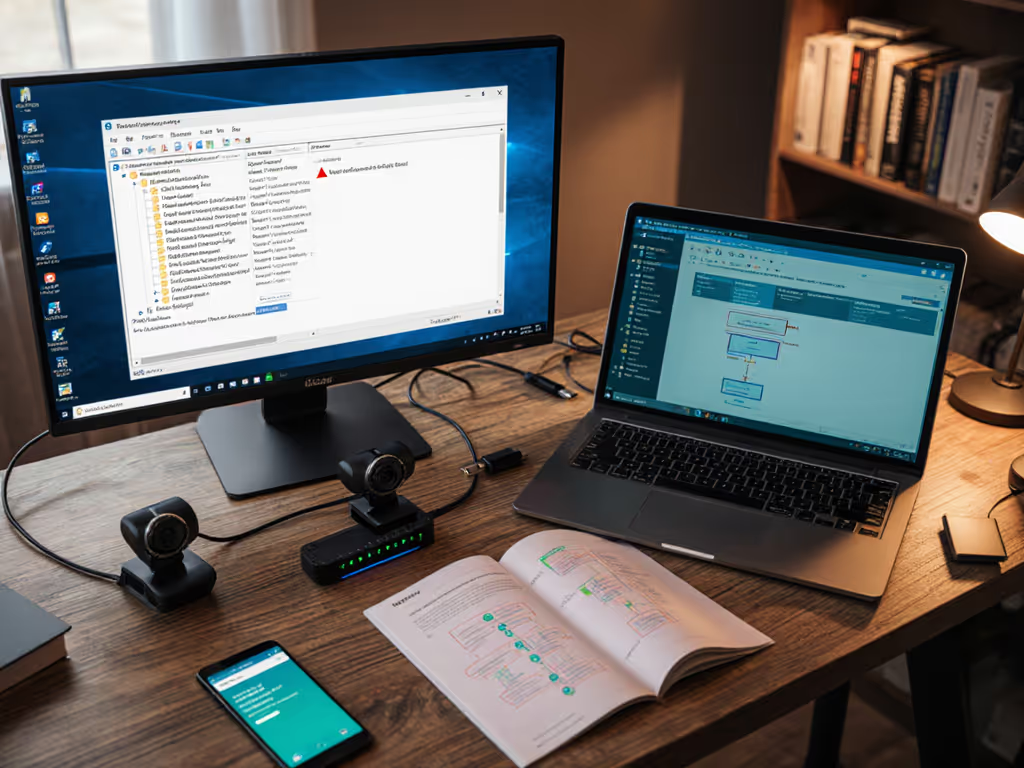
Matching bandwidth to device priority ensures your camera gets the data path it needs, and your on-stream look stays locked. If issues persist despite a clean USB chain, troubleshoot at the OS level with our webcam driver optimization guide.
Mixed lighting (e.g., warm overhead LED + cool RGB ring light + daylight from a window) is the hardest scenario for white balance. Your camera's sensor sees a blend, and automatic white balance algorithms hunt for a "correct" reading that doesn't exist, because the light sources genuinely contradict.
This is where cable reliability becomes invisible but critical. If your USB connection is marginal, the camera's white balance correction gets delayed or incomplete feedback. It makes a decision, sends the frame, then realizes the frame was wrong, and the next frame over-corrects. The result: color pulsing or banding.
With a clean USB 3.0 connection and a quality cable, the feedback loop is fast and predictable. The camera may still hunt briefly under mixed light, but it settles faster and more smoothly. This is why creators who solve their mixed-light problem almost always upgrade both their cable and their approach (e.g., manual white balance, a secondary light, or a LUT per platform). The cable ensures the camera can execute those adjustments consistently.
Often, yes. If you're seeing frame drops, latency, or unexplained color shifts, and your camera is less than 3 years old, try these steps first:
If the camera now performs smoothly and your white balance locks in under your lighting, a $15-25 cable upgrade just solved the problem. This is far cheaper and faster than researching and replacing a $100-300 camera.
A consistent, stable video feed is a trust signal. Viewers subconsciously register if your skin tone shifts or if your camera stutters during a product demo. Sponsors certainly notice. A polished, stable stream suggests you're serious about the craft, even if the camera itself is mid-range.
Conversely, an expensive camera feeding a poor USB connection will look worse than a modest camera on a clean USB 3.0 chain. Reliability trumps specs. This is why creators who take their USB setup seriously often report higher viewer retention and more sponsor inquiries, even before they upgrade their camera.
If you've optimized your USB setup and still see instability, the next investigative steps depend on your specific pain point:
The USB cable is foundational, but it's part of a chain: light → camera → cable → computer → platform → viewer. Match across apps by locking the most controllable elements first: your cable, your light, and your camera settings. Once those three are stable, your on-camera look becomes repeatable, and you can focus on content instead of troubleshooting.