Setup & Technical Fundamentals
Trading Stream Webcam Optimization: Clear Charts, Clean Video
25th May•10 min read
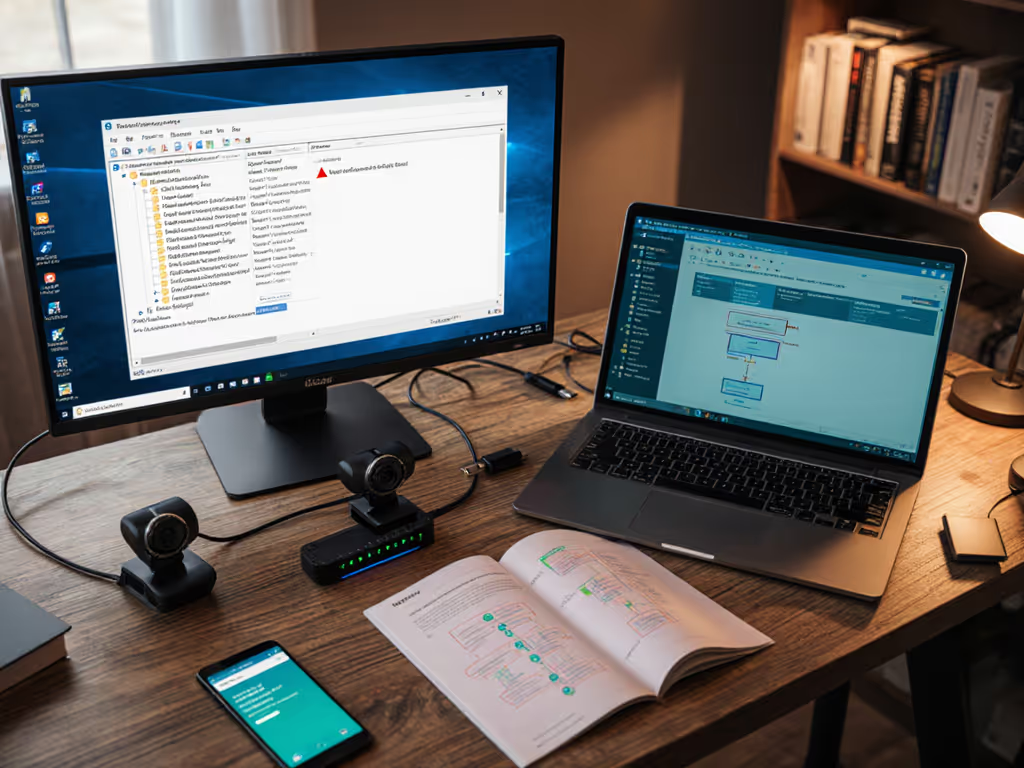
When your webcam compatibility troubleshooting session turns into a 30-minute scramble before going live, you're not alone. Streaming software integration issues block hundreds of creators daily (whether it's OBS refusing to see your camera, Zoom picking the wrong input, or your capture card vanishing mid-stream). The root isn't always obvious: sometimes it's a driver conflict, sometimes it's bandwidth starvation on a shared USB hub, and sometimes it's an OS-level setting that's been quietly sabotaging you for weeks.
The friction point matters because smooth hands, smooth scenes, zero mid-stream surprises ever. When your camera stack works predictably across sessions, you stop troubleshooting and start performing. This guide maps the decision tree for OS-specific webcam problems, UVC compliance issues, and driver conflict resolution so you can diagnose systematically instead of panic-testing every cable in your drawer.
You plug in a webcam. Streaming software sees it. Then... nothing. Or worse, it works until you add a second USB device, and both go dark. Or your capture card streams fine until you try to layer a real webcam on top, and Windows refuses to allocate both simultaneously.
The agitation here is real: you've tested the cable, restarted OBS, and checked your browser permissions. Your camera works in Photos or FaceTime. But your streaming platform? Blank device list. The setup that worked yesterday suddenly doesn't. You've got five minutes until airtime.
This isn't random. It's a cascade of decisions baked into hardware, drivers, USB protocol negotiation, and how each OS architects video device management. Once you map those layers, you stop being helpless.
A high-speed webcam or capture card demands real bandwidth. USB 2.0 maxes out at 480 Mbps shared across all devices on the hub. Add a mouse, a keyboard, and a second camera, and you've created contention. Windows and macOS handle this negotiation differently. Windows often picks arbitrarily which device gets priority, leaving others starved or invisible.[2] Avoid hidden bottlenecks by reviewing our USB cable quality and length guide.
Unpowered hubs make this worse. A camera pulling power from a hub while competing for data bandwidth will either throttle video quality or drop the connection entirely. The fix isn't always to buy new gear; it's to move devices to dedicated ports or switch to a powered hub with per-port power rails.
On Windows, an HDMI capture card and a USB webcam plugged into different USB ports can trigger a conflict where the OS loads drivers for only one at a time.[2] This happens because Windows sometimes routes video capture requests sequentially rather than in parallel, especially on older systems or with certain driver versions.
On macOS (particularly Apple Silicon Macs), UVC (USB Video Class) driver support is incomplete. Some cameras work flawlessly; others hang indefinitely or drop frames because the OS can't negotiate the right protocol variant. Nikon and Sony both publish webcam utilities that sidestep this by using vendor-specific protocols instead of UVC.[4][8]
A mirrorless camera set to Manual mode won't output HDMI by default. A capture card expecting 4K30 signal receiving 1080p60 will buffer indefinitely. These aren't failures, they're misconfigurations that feel like failures because the hardware stays silent.[1] A memory card missing from the camera means no video output at all, even though USB power is live.[1]
Before touching software, confirm the OS sees the device at all.
Generic UVC compliance works for basic 1080p webcams. For mirrorless cameras or capture cards, you typically need vendor software.
Once the OS recognizes the camera, your streaming app needs to request it correctly.
Many compatibility ghosts are actually power ghosts. A camera that stutters, disconnects, or shows crushed blacks is often power-starved, not software-broken.
For mirrorless and DSLR setups with capture cards:
Once everything connects, latency becomes the next frontier. Each layer (camera to USB, USB to software, software to platform) adds delay. If you're streaming gameplay or doing product demonstrations, accumulated latency becomes visible lip-sync drift.
Capture cards typically add 30-100 ms depending on compression and buffering. USB webcams add 10-40 ms. Your streaming platform (Twitch, YouTube, Zoom) adds another 500 ms to 3 seconds downstream. To dial in per-platform settings that minimize delay without quality loss, use our platform-specific webcam settings guide. If you're monitoring audio from a separate mixer, that chain needs its own sync tuning.
The workflow win here: establish your latency budget before go-live. If you stream with a capture card + Streamlabs + Twitch, test the full chain in a rehearsal and measure end-to-end delay with a phone camera pointed at your monitor. If it's under 200 ms between camera and your on-screen feedback, you're in the clear. Above that, your audience may notice.
The best troubleshooting is prevention. After watching a gaming cam drift a full second out of sync with overlays mid-show, I learned: document your working configuration as a checklist, maintain a secondary camera input (even a simple USB webcam as backup), and test the full chain every session before creators touch it.
Webcam compatibility isn't a mystery once you know the layers. It's a sequence: OS recognition → driver load → streaming software selection → USB power → latency calibration. Break it down this way, and you isolate the actual failure point in minutes instead of guessing.
If you're still stuck after running through these checks, document the exact failure (Does the camera appear in Device Manager but not OBS? Does it work in FaceTime but not Zoom?) and search that specific scenario. The precision saves hours. Your setup will be tighter, your go-live will be smoother, and your hands will stay on content, not cables.
Start with a single test: plug your camera into a powered hub on a dedicated USB 3.0 port, update its firmware, and verify it in the OS before launching any software. That one move solves 60% of compatibility tangles. Build from there.